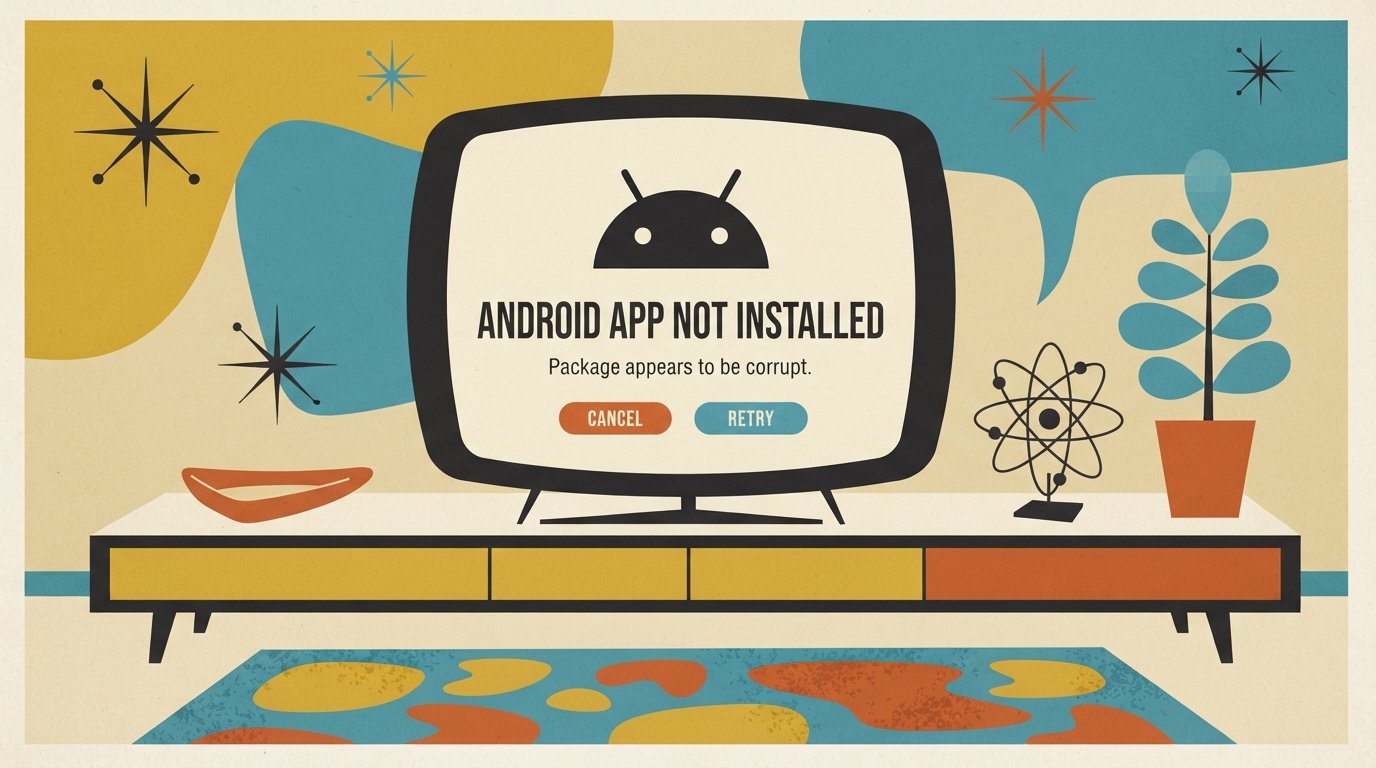
Android “App Not Installed” Error? 8 Fixes That Work
The most common cause is a signature conflict — an older version of the same app is already installed with a different signing key, so Android refuses to replace it. The fastest fix is to uninstall the existing app completely, then install the new version. If that fails, free up storage and enable “Install Unknown Apps” for your browser or file manager.
Quick Facts
| Item | Details |
|---|---|
| Problem | “App not installed” error when installing or updating an app on Android |
| Affected Devices | All Android phones and tablets: Samsung, Google Pixel, Xiaomi, Motorola, OnePlus, and others |
| Most Common Cause | A signature conflict — an older version of the app with a different signing key is already on the phone |
| Fastest Fix | Uninstall the existing app, then reinstall the new version |
| Time Needed | 2–5 minutes (most fixes) |
| Difficulty | Easy |
| Data Loss Risk | None for most fixes. Uninstalling an app may delete its local data. |
| Tested On / Updated For | Android 13–16, October 2026 |
[AD SLOT]
What Causes the “App Not Installed” Error?
This error means Android’s package installer refused to complete the installation. It does not tell you why — the same message covers at least seven different problems.
The most common causes are:
Signature mismatch. Android will not replace an installed app with one signed by a different key. This is the most common cause by far. It happens when you install an APK from a different source than the original, or when a debug build conflicts with a release build.
Not enough storage. Installing needs room for the archive, the unpacked app, and the optimized code at the same time. A 500 MB game can need two to three times that free.
“Install Unknown Apps” permission not granted. Android requires you to explicitly allow each app (browser, file manager) to install APKs from outside the Play Store.
Corrupted or partial download. If the download was interrupted, the APK is incomplete and Android cannot parse it.
Google Play Protect blocking the install. Play Protect sometimes flags safe sideloaded apps and silently blocks them.
The app needs a newer Android version than your phone has. Every APK declares a minimum Android version. If your phone is below it, the installer refuses.
Quick note: Samsung phones have an extra layer called Device Security (powered by McAfee) that can block installs even when Play Protect is off. Samsung’s Auto Blocker (One UI 6 and later) also blocks sideloading by default.
Quick Fixes (Try These First)
These are ordered from easiest to hardest. Stop as soon as the app installs successfully.
Fix 1: Uninstall the Existing App Version
This fixes the signature conflict, which is the most common cause. You will lose the app’s local data unless it backs up to a cloud account, so sign in and sync before you uninstall if the app supports it.
Steps:
Open Settings > Apps (or Settings > Apps & notifications).
Find the app you are trying to install.
Tap Uninstall. If you see an option for “Uninstall for all users,” choose that.
Restart your phone.
Try installing the app again.
On Samsung: Settings > Apps > [app name] > Uninstall. If the option says “Uninstall for all users,” select it.
Fix 2: Free Up Storage Space
Android needs roughly two to three times the APK’s file size in free space to complete an installation. If your phone has less than 1–2 GB free, installs will likely fail.
Steps:
Open Settings > Storage (or Settings > Device Care > Storage on Samsung).
Check how much free space you have. Aim for at least 2–3 GB free.
Delete old downloads, unused apps, and duplicate files.
Clear the cache for large apps like Spotify or YouTube.
Restart your phone and try installing again.
Fix 3: Enable “Install Unknown Apps”
Android requires explicit permission for each app that installs APKs. If you are installing from Chrome, a file manager, or another browser, that specific app needs this permission.
Steps (menu names vary by brand):
Open Settings > Apps.
Tap the three-dot menu (top right) and select Special access.
Tap Install unknown apps.
Find the app you are using to install the APK (Chrome, My Files, etc.).
Toggle “Allow from this source” to ON.
Go back and try the installation again.
Brand-specific paths:
| Brand | Path |
|---|---|
| Stock Android / Pixel | Settings > Apps > Special access > Install unknown apps |
| Samsung | Settings > Apps > ⋮ menu > Special access > Install unknown apps |
| Xiaomi / Redmi | Settings > Privacy protection > Special permissions > Install unknown apps |
| Motorola | Settings > Apps > Special access > Install unknown apps |
Fixes for Android (Deeper Troubleshooting)
If the quick fixes above did not work, move to these steps.
Fix 4: Clear the Package Installer Cache
What the Package Installer is: It is the Android system component that handles app installations. Its cache can get corrupted, causing installs to fail. Clearing the cache is safe and does not delete personal data.
Steps:
Open Settings > Apps.
Tap the three-dot menu and select Show system apps.
Find Package Installer (sometimes listed as “Package installer”).
Tap Storage & cache.
Tap Clear cache.
Restart your phone and try installing again.
If clearing the cache does not work, try Clear storage on the same screen. This resets the installer but does not delete your personal files.
Fix 5: Clear Google Play Store Cache and Data
This fixes install failures that happen inside the Play Store itself. Clearing the data will sign you out of the Play Store — you will need to sign in again.
Steps:
Open Settings > Apps > Google Play Store.
Tap Storage & cache.
Tap Clear cache.
If the problem continues, tap Clear storage (or “Clear all data”).
Open the Play Store, sign back in, and try installing the app.
Do the same for Google Play Services if the problem persists.
Fix 6: Disable Google Play Protect Temporarily
What Play Protect is: A Google security service that scans apps for malware before and after installation. It sometimes blocks safe sideloaded apps. This is safe to disable temporarily, but re-enable it immediately after the install.
Steps:
Open the Google Play Store app.
Tap your profile icon (top right).
Tap Play Protect.
Tap the gear icon (top right).
Turn off “Scan apps with Play Protect”.
Install your app.
Turn Play Protect back on immediately after the install.
On Samsung phones, also check Settings > Biometrics and security > Device security and temporarily disable McAfee/Device security before installing.
Fix 7: Download a Fresh APK File
A corrupted or partial download is a common cause. If the file size does not match the original, or if it arrived via a chat app, re-download it.
Steps:
Delete the corrupted APK file from your phone.
Re-download the APK from a reputable source over a stable Wi-Fi connection.
Check that the file size matches the original listing.
Try installing again.
If you are installing a large app that ships as an XAPK or APKS file (base APK + split APKs), use an XAPK installer app to put all parts in place at once. Installing only the base APK causes this error.
Fix 8: Check Android Version Compatibility
If the app requires a newer Android version than your phone has, the installation will be blocked. This looks identical to every other “App not installed” error.
Steps:
Open Settings > About phone and check your Android version.
Go to the app’s Play Store page or download page and check the “Requires Android” information.
If your phone is older, look for an older version of the app that supports your Android version.
If your phone is current, check Settings > System > System update for a newer OS version.
Comparison Table: Which Fix Should You Try?
| Fix | Works For | Time | Data Loss Risk |
|---|---|---|---|
| Uninstall existing app | Signature conflicts, update failures | 2 min | App local data lost |
| Free up storage | Insufficient storage errors | 5 min | None |
| Enable Unknown Apps | Sideloading permission blocked | 1 min | None |
| Clear Package Installer cache | Corrupted installer cache | 2 min | None |
| Clear Play Store cache/data | Play Store install failures | 3 min | Play Store sign-in needed |
| Disable Play Protect | Play Protect blocking safe apps | 2 min | None (re-enable after) |
| Re-download APK | Corrupted or partial downloads | 5 min | None |
| Check Android version | App incompatibility | 2 min | None |
Decision Tree: What to Do Next
You are updating an app you already have? → Go to Fix 1 (uninstall first).
You are installing from a browser or file manager? → Go to Fix 3 (enable Unknown Apps).
Your phone has less than 2 GB free? → Go to Fix 2 (free up storage).
The app is from the Play Store and still fails? → Go to Fix 5 (clear Play Store cache).
You downloaded an APK file directly? → Go to Fix 6 (disable Play Protect) then Fix 7 (re-download).
Nothing works after all fixes? → The app may not be compatible with your device. Check Fix 8.
[AD SLOT]
Fixes for Specific Brands
Samsung
Samsung phones have two extra security layers that can block installs: Device Security (McAfee) and Auto Blocker. Disable both temporarily before sideloading.
Steps:
Open Settings > Biometrics and security > Device security. Temporarily disable it.
Open Settings > Security and privacy > Auto Blocker. Turn it off.
Open Settings > Apps > ⋮ menu > Special access > Install unknown apps. Enable it for your browser or file manager.
Install the app, then re-enable both security features.
Google Pixel
Pixel phones follow stock Android paths. If the Play Store install fails, clear the Play Store cache (Fix 5). If sideloading an APK, enable Unknown Apps for your file manager (Fix 3).
Xiaomi / Redmi / POCO
Xiaomi’s MIUI and HyperOS have a hidden “MIUI Optimization” setting that sometimes causes install failures. It is not visible by default.
Steps to find it:
Open Settings > About phone and tap MIUI version seven times to enable Developer Options.
Go to Settings > Additional settings > Developer options.
Scroll to the bottom and tap “Reset to default values” a few times. The MIUI Optimization toggle will appear.
Turn off MIUI Optimization temporarily.
Install the app, then turn it back on.
Also enable Unknown Apps via Settings > Privacy protection > Special permissions > Install unknown apps.
Motorola
Motorola uses near-stock Android. Enable Unknown Apps via Settings > Apps > Special access > Install unknown apps. If Play Store installs fail, clear the Play Store cache (Fix 5).
How to Avoid Losing Data
Uninstalling an app to fix a signature conflict may delete its local data. Before you uninstall:
Sign in to the app and sync data to the cloud if it supports it (WhatsApp, Telegram, Google Drive, etc.).
Check the app’s backup settings — many apps back up automatically when you are signed in.
Google One backup: Settings > Google > Backup. Make sure it is turned on. This backs up app data for most apps.
Samsung Smart Switch: Back up to a PC using Smart Switch before uninstalling Samsung-specific apps.
For Play Store cache clearing, no data is lost — you just need to sign in to the Play Store again.
Common Mistakes to Avoid
Re-downloading the same APK five times. If the first re-download fails, the problem is not the file — it is permissions or signature conflicts.
Installing only the base APK for a split app. Large apps need the XAPK or APKS version, not just the base APK.
Leaving Play Protect disabled. Turn it back on immediately after installing. Leaving it off exposes your phone to malware.
Forgetting Samsung’s Auto Blocker. Disabling Play Protect is not enough on newer Samsung phones. Auto Blocker also blocks sideloading.
Factory resetting too early. A factory reset is rarely needed for this error. Try all software fixes first.
When It’s a Hardware or System Problem
If the “App not installed” error happens for every app you try to install — even from the Play Store — the problem may be deeper than a single app conflict.
Signs of a system-level issue include:
Every app fails to install, regardless of source.
The error appears after a system update.
Clearing Play Store data and Package Installer cache does not help.
In these cases, back up your data and try a factory reset as a last resort. If the error continues after a factory reset, the issue is likely a firmware problem. Contact your phone manufacturer’s support or visit an authorized repair center.
How to Prevent This Error
Always install apps from the Google Play Store when possible. Sideloading is the main cause of signature conflicts.
Keep 10–15% of storage free. A full drive blocks installations.
Keep Android updated. Settings > System > System update.
Download APKs only from reputable sources and verify the file size before installing.
Back up app data regularly so you can safely uninstall and reinstall when needed.
Common Questions
Why does it say “App not installed” when I try to install an APK?
The most common cause is a signature conflict — an older version of the same app is already on your phone with a different signing key. Uninstall the existing app, restart your phone, and try again. If that fails, check that “Install Unknown Apps” is enabled for your browser or file manager.
How much storage do I need to install an app?
Android needs roughly two to three times the APK’s file size in free space. A 100 MB APK may need 250–300 MB free. If your phone has less than 1–2 GB free, installations will likely fail. Aim for at least 2–3 GB of free space.
Does clearing the Play Store cache delete my apps?
No. Clearing the Play Store cache and data only resets the Play Store app itself. Your installed apps, photos, messages, and other personal data are not affected. You will need to sign in to the Play Store again after clearing its data.
What is Google Play Protect and why is it blocking my install?
Play Protect is a Google security service that scans apps for malware. It sometimes blocks safe sideloaded apps that request sensitive permissions. You can temporarily disable it in Play Store > Profile icon > Play Protect > Gear icon, but re-enable it immediately after installing.
Why does Samsung say “App not installed” even after disabling Play Protect?
Samsung phones have two extra security layers: Device Security (McAfee) and Auto Blocker. Both can block installations independently of Google Play Protect. Disable both temporarily: Settings > Biometrics and security > Device security, and Settings > Security and privacy > Auto Blocker.
Can I install an app if my Android version is too old?
No. Every app declares a minimum Android version. If your phone is below it, the installer will refuse. Look for an older version of the app that supports your Android version, or check if a system update is available for your phone.
What is an XAPK file and why do I need it?
An XAPK is a package that contains a base APK plus split APKs for your device’s architecture, screen density, and language. Large apps like games ship this way. Installing only the base APK causes the “App not installed” error. Use an XAPK installer app to install all parts at once.
Why does the “App not installed” error keep coming back after I fix it?
If the error returns after reinstalling, the underlying cause is still present. This usually means a work profile or device policy is blocking sideloading, or the APK is not built for your phone’s CPU architecture. Connect your phone to a PC and run “adb logcat” to see the exact error.
Key Takeaways
The most common cause is a signature conflict — an older version of the app is already installed with a different key. Uninstall it first.
Android needs 2–3 times the APK file size in free storage to complete an installation.
“Install Unknown Apps” must be enabled for your browser or file manager before sideloading.
Clear the Package Installer cache and Google Play Store cache to fix corrupted installer data.
Samsung phones need Device Security (McAfee) and Auto Blocker disabled temporarily for sideloading.
Google Play Protect sometimes blocks safe apps. Disable it temporarily, then re-enable immediately.
If every app fails to install, the issue is system-level. Back up and try a factory reset.
Always install from the Google Play Store when possible to avoid signature conflicts.
Official Resources
Google Play Help: support.google.com/googleplay — search for “can’t install apps” or “download issues.”
Android Help: support.google.com/android — search for “app installation problems.”
Samsung Support: samsung.com/support — search for “cannot install apps” or “Auto Blocker.”
Xiaomi Support: mi.com/support — search for “APK installation failed.”
Motorola Support: motorola.com/support — search for “app installation error.”