
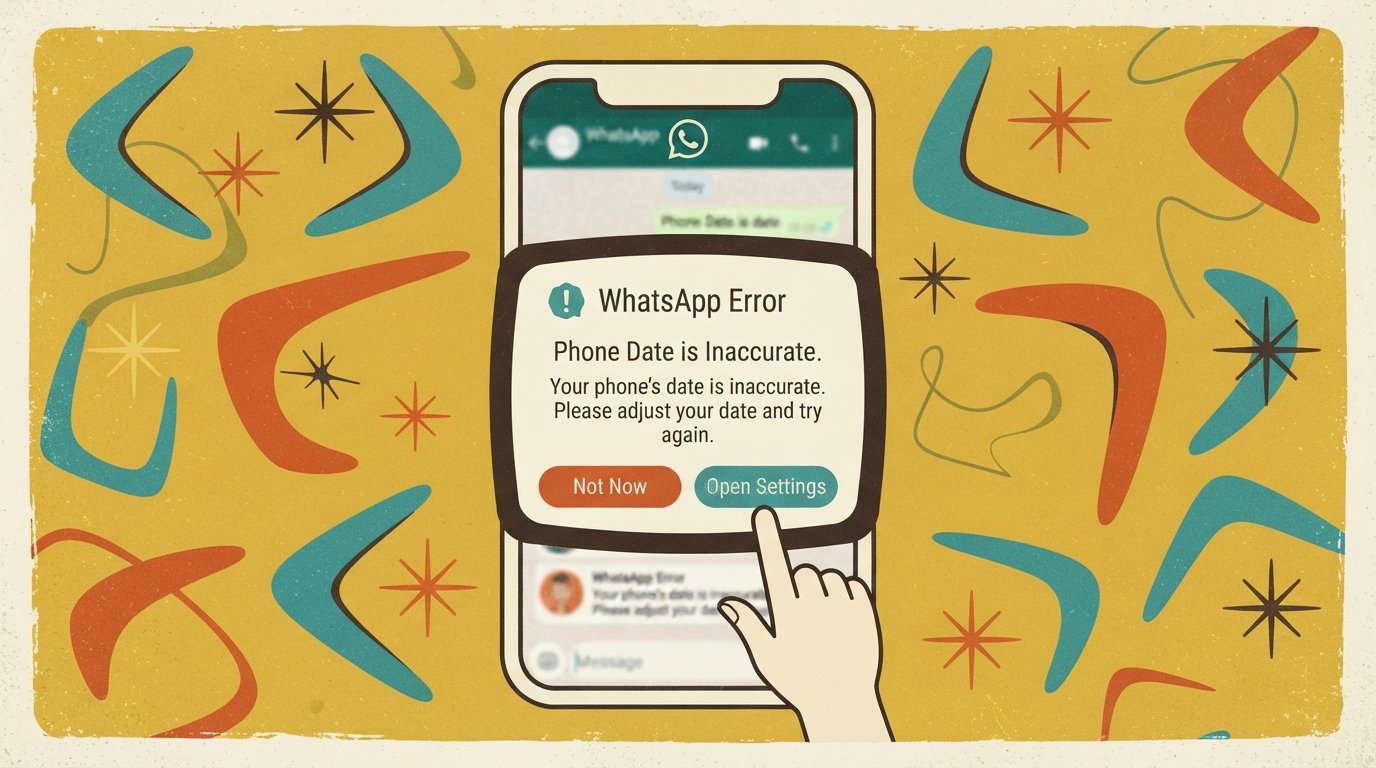
WhatsApp “This Phone Date Is Inaccurate” Error? 7 Fixes That Work
WhatsApp shows this error when your phone’s clock is too far from real time, which breaks the SSL encryption that WhatsApp uses to connect to its servers. The fastest fix is to enable automatic date and time: Settings > Date & Time > turn on “Automatic date and time” and “Automatic time zone.” Then force-close and reopen WhatsApp.
Quick Facts
| Item | Details |
|---|---|
| Problem | WhatsApp opens with “Your phone date is inaccurate! Adjust your clock and try again” |
| Affected Devices | All Android and iPhone models running WhatsApp |
| Most Common Cause | Manual date/time set incorrectly, or automatic sync failed after a network change |
| Fastest Fix | Enable automatic date and time, then restart WhatsApp |
| Time Needed | 1–2 minutes (settings fix) to 10 minutes (reinstall) |
| Difficulty | Easy |
| Data Loss Risk | None for most fixes. Clearing WhatsApp data will delete chat history. |
| Tested On / Updated For | Android 13–16 and iOS 18–27, October 2026 |
[AD SLOT]
What Causes the WhatsApp Date Error?
WhatsApp checks your phone’s clock every time it connects to its servers. If the time is off by more than a few minutes, the secure connection fails. WhatsApp then shows the “date is inaccurate” message instead of loading your chats.
The most common causes are:
Manual date or time set incorrectly. If “Automatic date and time” is turned off and you set the clock manually, it drifts over time. A wrong date or time zone can also happen after a system restart or a network change.
Automatic time sync failed. Your phone normally syncs its clock with your carrier’s network. If the sync fails — often after switching SIM cards, traveling, or connecting to a different network — the clock can drift.
Wrong time zone. Even if the clock shows the correct hour, a wrong time zone setting can cause a mismatch. This is common for travelers and people who use VPNs with servers in other countries.
Outdated WhatsApp version. Older versions of WhatsApp sometimes fail to sync correctly with current servers, triggering the error even when your clock is accurate.
Corrupted cache. Temporary files stored by WhatsApp can become corrupted and block the app from connecting to its servers.
Network or VPN interference. Unstable VPN connections or a carrier network issue can prevent your phone from getting the correct time from the network.
Quick note: WhatsApp depends on your phone’s system clock — it does not have its own time settings. Any change to your phone’s date, time, or time zone directly affects WhatsApp.
Quick Fixes (Try These First)
These are ordered from easiest to hardest. Stop as soon as WhatsApp opens normally.
Fix 1: Enable Automatic Date and Time
This is the fix that works in most cases. Android and iPhone both have a setting that syncs your clock with your carrier’s network time server.
Steps for Android:
Open Settings.
Search for “Date and time” or go to Settings > System > Date & Time (the exact path varies by brand — see the brand table below).
Turn on “Automatic date and time” (may be labeled “Use network time” on some phones).
Turn on “Automatic time zone” (may be labeled “Use network-provided time zone”).
Force-close WhatsApp: open your recent apps view and swipe WhatsApp away.
Reopen WhatsApp.
Steps for iPhone:
Open Settings > General > Date & Time.
Turn on “Set Automatically”.
Confirm that the time zone shown is correct.
Force-close WhatsApp: swipe up from the bottom of the screen and swipe WhatsApp away.
Reopen WhatsApp.
Brand-specific paths for Android:
| Brand | Path |
|---|---|
| Samsung | Settings > General Management > Date and Time |
| Google Pixel | Settings > System > Date & Time |
| Xiaomi / Redmi | Settings > Additional Settings > Date & Time |
| Motorola | Settings > System > Date & Time |
| OnePlus | Settings > System > Date & Time |
If this fixes the error, move on to Fix 2 to make sure it does not come back.
Fix 2: Restart Your Phone
A restart forces your phone to re-sync its clock with the network and clears temporary software glitches. This is the fastest fix if your automatic date settings were already correct.
Steps:
Press and hold the Power button (or Side button on iPhone) until the power menu appears.
Tap Restart (Android) or swipe the power slider (iPhone).
Wait for the phone to fully restart.
Open WhatsApp.
If WhatsApp still shows the error after restarting, move to Fix 3.
Fix 3: Disable VPN and Check Network Connection
A VPN reroutes your internet traffic through a server in another country. This can confuse your phone’s time zone detection and break WhatsApp’s SSL connection. Turn off your VPN and check whether the error goes away.
Steps:
Open your phone’s Settings and find VPN (or open your VPN app directly).
Turn off the VPN connection.
Switch to a stable Wi-Fi network or use mobile data.
Wait 1–2 minutes for your phone to re-sync its time.
Open WhatsApp.
If the error appears only on one Wi-Fi network, try a different network. Some public or hotel Wi-Fi networks block the time-sync servers your phone uses.
Fixes for Android
If the quick fixes above did not work, move to these steps. All of these are Android-specific.
Fix 4: Clear WhatsApp Cache
What the cache is: Temporary files WhatsApp stores to load faster. When these files become corrupted, they can block the app from connecting to WhatsApp servers. Clearing the cache does not delete your chats.
Steps:
Open Settings > Apps (or Settings > Apps & notifications).
Find and tap WhatsApp.
Tap Storage & cache.
Tap Clear cache.
Reopen WhatsApp.
On Samsung: Settings > Apps > WhatsApp > Storage > Clear cache.
If clearing the cache does not work, try Fix 5.
Fix 5: Update WhatsApp
An outdated version of WhatsApp may not sync properly with current servers. Updating is quick and safe.
Steps:
Open the Google Play Store.
Tap your profile icon (top right) and select Manage apps & device.
Tap Updates available.
Find WhatsApp and tap Update.
If WhatsApp is not listed, it is already up to date.
Reopen WhatsApp after the update.
If the update does not fix it, move to Fix 6.
Fix 6: Check WhatsApp Data and Storage Access
On Android, WhatsApp needs permission to access your phone’s storage and network. If these permissions were changed or restricted, the app may fail to connect.
Steps:
Open Settings > Apps > WhatsApp.
Tap Permissions.
Make sure Storage and Network (or Mobile data & Wi-Fi) are allowed.
Go back and tap Mobile data & Wi-Fi (or Data usage).
Turn on Background data and Unrestricted data usage if available.
Reopen WhatsApp.
Fixes for iPhone
iPhone-specific fixes for the WhatsApp date error.
Fix 7: Off and On Again — Automatic Time Setting
On iPhone, toggling “Set Automatically” off and back on forces iOS to re-request the time from Apple’s time servers. This resets the sync and often clears the error.
Steps:
Open Settings > General > Date & Time.
Turn “Set Automatically” OFF.
Wait 10 seconds.
Turn “Set Automatically” back ON.
Confirm the time zone is correct.
Force-close WhatsApp and reopen it.
If this does not work, try updating WhatsApp from the App Store. On iPhone, you cannot clear the app cache separately — the only way to clear cached data is to reinstall the app.
⚠️ Warning: Uninstalling WhatsApp on iPhone will delete your chat history unless you have an iCloud backup. Go to WhatsApp Settings > Chats > Chat Backup > Back Up Now before uninstalling.
Steps to reinstall:
Back up WhatsApp chats: WhatsApp > Settings > Chats > Chat Backup > Back Up Now.
Uninstall WhatsApp: press and hold the icon, tap Remove App, then Delete App.
Open the App Store and reinstall WhatsApp.
Sign in with your phone number and restore from the iCloud backup.
Comparison Table: Which Fix Should You Try?
| Fix | Works For | Time | Data Loss Risk |
|---|---|---|---|
| Automatic date & time | Wrong clock, wrong time zone | 1 min | None |
| Restart phone | Sync glitches | 2 min | None |
| Disable VPN | Time zone confusion from VPN | 2 min | None |
| Clear WhatsApp cache | Corrupted cache (Android only) | 2 min | None |
| Update WhatsApp | Outdated app version | 3 min | None |
| Check permissions | Restricted storage or network access | 3 min | None |
| Reinstall WhatsApp | Persistent errors | 10 min | Chat history lost if no backup |
Decision Tree: What to Do Next
WhatsApp error appeared suddenly? → Go to Fix 1 (automatic date and time).
You just traveled or changed SIM cards? → Go to Fix 1 and check the time zone.
You are using a VPN? → Go to Fix 3 (disable VPN).
Error persists after Fix 1? → Go to Fix 2 (restart) then Fix 4 (clear cache, Android only).
Android and all above failed? → Go to Fix 6 (check permissions).
iPhone and all above failed? → Back up chats and reinstall WhatsApp.
Still not working after reinstall? → Check your carrier network or contact WhatsApp Support.
[AD SLOT]
How to Avoid Losing WhatsApp Data
Clearing WhatsApp data and reinstalling the app can delete your chat history. Before you try those fixes:
Back up chats on Android: WhatsApp > ⋮ menu > Settings > Chats > Chat backup > Back Up. This saves chats to Google Drive.
Back up chats on iPhone: WhatsApp > Settings > Chats > Chat Backup > Back Up Now. This saves chats to iCloud.
Check your backup settings: Make sure “Include videos” is turned on if you want to keep video messages.
Export specific chats: For important conversations, open the chat, tap the contact name, tap “Export chat,” and save it to your email or files.
If your chats are already backed up, clearing data or reinstalling WhatsApp is safe — you can restore them afterward.
Common Mistakes to Avoid
Setting the clock manually and leaving it. Manual clocks drift. Always use “Automatic date and time.”
Ignoring the time zone. Even a correct clock shows the wrong time if the time zone is wrong. Check both settings.
Leaving a VPN on. VPNs reroute your connection through another country, which can confuse your phone’s time zone detection.
Clearing WhatsApp data instead of cache. On Android, “Clear cache” is safe. “Clear data” deletes your chats and account settings. Use it only as a last resort before reinstalling.
Reinstalling without a backup. On iPhone, uninstalling WhatsApp deletes chat history. Back up first.
Repeating the same fix over and over. If Fix 1 does not work, move to Fix 2. Do not keep toggling the same setting.
When It’s a Carrier or Network Problem
If the error continues after all fixes, the problem may be with your carrier’s network time service. This is rare, but it can happen.
Signs of a carrier issue include:
The time is correct on your phone but WhatsApp still shows the error.
Other apps that depend on SSL connections (banking apps, email) also fail.
The error started after switching to a new carrier or a new SIM card.
What to do: Contact your mobile carrier and ask if there are any known issues with network time sync in your area. You can also try a different SIM card from another carrier to test whether the problem is specific to your network.
If the error appears only on one Wi-Fi network, contact the network administrator. Some networks block the time-sync protocol your phone uses.
How to Prevent This Error
Keep automatic date and time turned on. This is the single most important setting. Never set your clock manually unless you have no other choice.
Update WhatsApp regularly. Turn on automatic updates in the Google Play Store or App Store.
Turn off VPNs when using WhatsApp. VPNs are useful for privacy, but they can cause time zone mismatches. If you need a VPN, connect to a server in your own country.
Restart your phone once a week. This keeps time sync running smoothly and clears temporary glitches.
Back up WhatsApp chats regularly. Automatic backups to Google Drive or iCloud mean you can safely reinstall WhatsApp without losing data.
Common Questions
Why does WhatsApp say my phone date is inaccurate when the date looks correct?
The error means your phone’s clock is off by more than a few minutes from real time — even if the displayed date looks right. The most common cause is that “Automatic date and time” is turned off. Enable it in Settings, then restart WhatsApp.
How do I fix “This phone date is inaccurate” on WhatsApp?
Open Settings > Date & Time and turn on “Automatic date and time” and “Automatic time zone.” Force-close WhatsApp and reopen it. If that does not work, restart your phone, disable any VPN, and clear WhatsApp’s cache (Android only). These steps fix this error in most cases.
Does the WhatsApp date error mean I am hacked?
No. This error is a technical sync problem, not a security breach. WhatsApp uses SSL certificates for encryption, and those certificates require your phone’s clock to be accurate. A wrong clock breaks the connection and triggers the error.
Will I lose my WhatsApp chats if I clear the cache?
No. Clearing the cache only removes temporary files. Your chats, photos, and account settings are not affected. On Android, only “Clear data” deletes your chats. On iPhone, there is no cache-clearing option — you would need to reinstall the app.
Why does the error keep coming back after I fix it?
If the error returns, your phone is likely losing its time sync again. This can happen if you have a weak network connection, if your carrier’s time service is unreliable, or if your phone is switching between time zones. Check that “Automatic date and time” remains on and that your network is stable.
Can a VPN cause the WhatsApp date error?
Yes. A VPN reroutes your internet traffic through a server in another country. Your phone may pick up the wrong time zone from that server, causing WhatsApp’s SSL connection to fail. Turn off the VPN and wait a few minutes for your phone to re-sync.
What is the “Adjust date” button in the WhatsApp error?
The “Adjust date” button appears inside the error message. Tapping it opens your phone’s Date & Time settings, where you can enable automatic sync. It is a shortcut — it does not fix anything by itself.
Does this error affect WhatsApp calls and messages?
Yes. When this error appears, WhatsApp cannot send or receive messages, make calls, or load chats. The app is effectively blocked until your phone’s time is corrected. Fixing the time restores full functionality immediately.
Key Takeaways
WhatsApp shows this error when your phone’s clock is too far from real time, breaking the SSL connection to WhatsApp servers.
The fastest fix is enabling “Automatic date and time” and “Automatic time zone” in your phone’s settings.
Force-close and reopen WhatsApp after changing the time settings.
Disable VPNs — they can cause time zone mismatches that trigger the error.
Clearing WhatsApp cache (Android only) is safe and does not delete chats. Clearing data does.
On iPhone, reinstalling WhatsApp is the only way to clear its cache. Back up chats first.
If nothing works, contact your carrier — the issue may be with their network time service.
Keep automatic date and time enabled permanently to prevent this error from returning.
Official Resources
WhatsApp Help Center: Visit faq.whatsapp.com and search for “incorrect timestamps” or “phone date is inaccurate.”
Android Help: Visit support.google.com/android and search for “set date and time automatically.”
Apple Support: Visit support.apple.com and search for “set date and time on iPhone.”
Google Play Store: For WhatsApp updates on Android, open the Play Store and search for WhatsApp.
App Store: For WhatsApp updates on iPhone, open the App Store and search for WhatsApp.