iPhone “Cannot Verify Server Identity” Error? 7 Fixes That Work
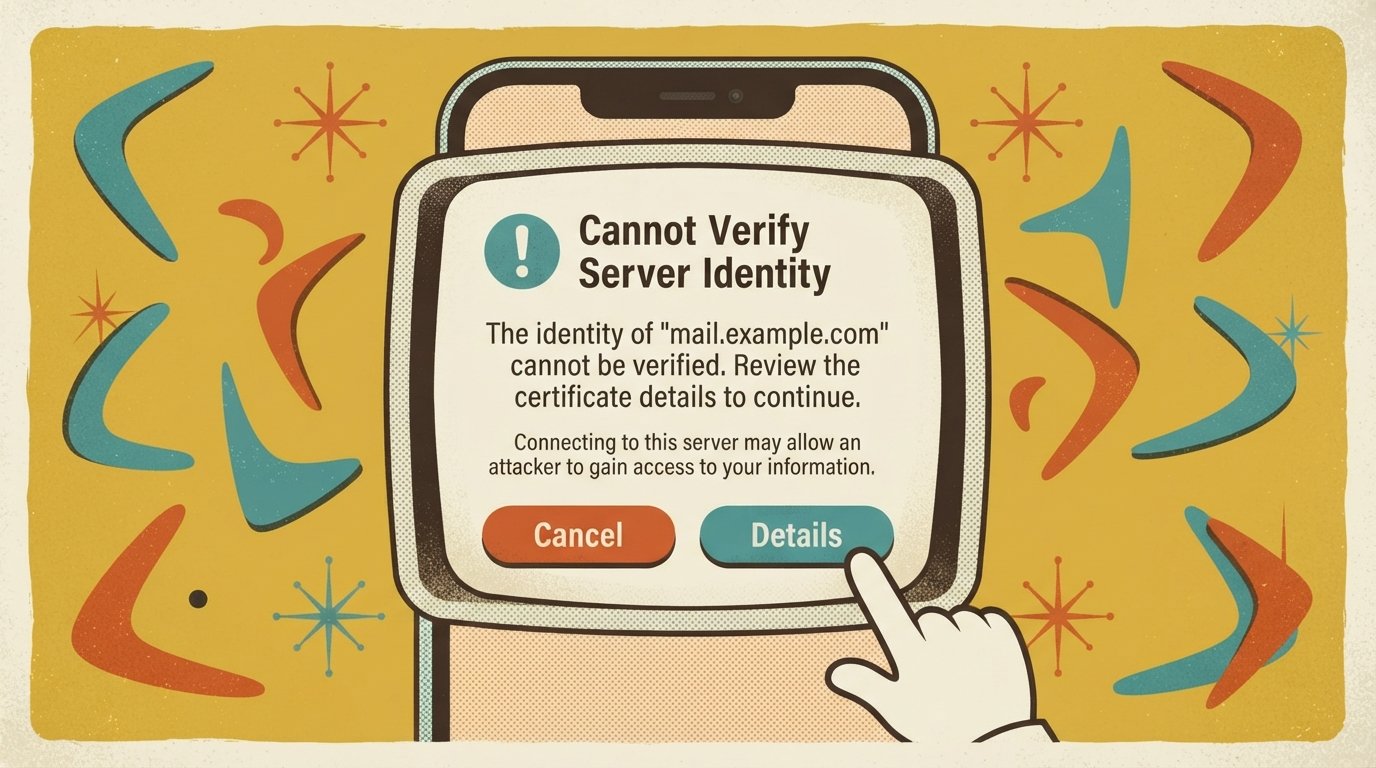
This error means your iPhone could not confirm that a server’s SSL certificate is valid, usually because the certificate is expired, mismatched, or self-signed. The fastest fix is to check your Date & Time settings — a wrong clock breaks certificate verification. If that does not work, remove and re-add the affected Mail or Calendar account.
Quick Facts
| Item | Details |
|---|---|
| Problem | A pop-up saying the server’s identity cannot be verified |
| Affected Devices | All iPhone models running iOS 15 and later |
| Most Common Cause | An expired or mismatched SSL certificate on an email, calendar, or Wi-Fi server |
| Fastest Fix | Check Date & Time settings, then remove and re-add the account |
| Time Needed | 2 minutes (Date & Time) to 10 minutes (account removal) |
| Difficulty | Easy |
| Data Loss Risk | None for most fixes. Removing a Mail or Calendar account may delete locally stored messages or events. |
| Tested On / Updated For | iOS 18–27, October 2026 |
[AD SLOT]
What Causes “Cannot Verify Server Identity”?
Your iPhone shows this error when it connects to a server and cannot confirm that the server’s SSL certificate is real. SSL (Secure Sockets Layer) is the encryption standard that protects your data in transit. Every secure server presents a certificate to prove its identity. If the certificate is expired, issued for a different domain name, or signed by an unknown authority, iOS refuses the connection.
The most common causes are:
An expired SSL certificate on the server. The website or mail provider did not renew it. This is the single most common cause, and no setting on your iPhone can fix it — the server owner must renew the certificate. One industry guide explains that a lapsed certificate means “the server can no longer prove its identity, and your iPhone refuses the connection”.
A certificate name mismatch. The certificate was issued for one domain (e.g.,
mail.provider.com) but your iPhone is connecting to a different hostname (e.g.,mail.website.com). This often happens when a shared hosting provider uses a generic server name.A self-signed certificate. Some private mail servers, corporate Exchange servers, and campus Wi-Fi networks use self-signed certificates. These are not signed by a trusted Certificate Authority, so iOS flags them as untrusted.
A wrong date and time on your iPhone. Certificate checks depend on the current date. If your iPhone’s clock is off — even by a few days — valid certificates will fail verification.
An outdated calendar subscription. Calendar feeds from the web can have expired certificates, causing repeated pop-ups even when you are not using the Mail app.
A corrupted Mail account configuration. Sometimes the account settings on your iPhone no longer match what the server expects, often after a password change or a provider security update.
Important: This error does not automatically mean you are being attacked. It usually means a certificate needs updating, a setting is wrong, or the server is misconfigured. Do not enter passwords into a pop-up you do not recognize.
Quick Fixes (Try These First)
These are ordered from easiest to hardest. Stop as soon as the pop-ups stop.
Fix 1: Check Date & Time Settings
A wrong clock is the simplest and most overlooked cause. iOS compares the current date against the certificate’s validity window. If the clock is wrong, even a perfectly valid certificate fails verification.
Steps:
Open Settings > General > Date & Time.
Toggle Set Automatically to ON.
Confirm that the time zone shown is correct.
Restart your iPhone.
Check whether the error still appears.
Fix 2: Restart Your iPhone
A restart clears temporary software glitches that can interfere with SSL certificate validation. This is the fastest fix to try if Date & Time is already correct.
Steps:
Press and hold the Side button until the power slider appears.
Drag the slider to turn off your iPhone.
Wait 30 seconds, then press the Side button again to turn it back on.
Check whether the error returns.
Fix 3: Switch to a Different Network
If the error only appears on one Wi-Fi network — especially a public or guest network — the network itself may be interfering with certificate validation. One community report describes iPhones on a guest Wi-Fi network suddenly showing the “server identity cannot be verified” warning after the network’s certificate was changed.
Steps:
Open Settings > Wi-Fi and turn off Wi-Fi.
Use cellular data and check whether the error stops.
If it does, the Wi-Fi network is the problem. Try a different Wi-Fi network or contact the network administrator.
Fixes for Mail and Exchange Accounts
If the error is coming from the Mail app, the issue is usually in the account settings. Menu names may differ slightly by iOS version — on newer versions, look under Settings > Apps > Mail > Mail Accounts instead of Settings > Passwords & Accounts.
Fix 4: Remove and Re-Add the Mail Account
This is the most effective fix for account-related certificate errors. It forces your iPhone to download a fresh configuration from the server. Microsoft’s own support forum recommends this as the first step for Outlook and Exchange accounts.
⚠️ Warning: Removing a Mail account may delete locally stored messages and drafts for that account. If your messages are stored on the server (IMAP, Exchange, or Outlook.com), they will re-download after you re-add the account. POP accounts may lose local copies.
Steps:
Open Settings > Mail > Accounts (or Settings > Apps > Mail > Mail Accounts on newer iOS).
Tap the account showing the error.
Tap Delete Account, then confirm.
Go back to the Accounts page and tap Add Account.
Choose your email provider (Outlook.com, Google, Exchange, or Other).
Enter your email address and password. If your provider uses two-factor authentication, you may need an app-specific password.
For Exchange accounts specifically: Microsoft recommends deleting the account and re-adding it as Outlook.com rather than Exchange. This forces the use of Modern Authentication (OAuth 2.0), which Apple Mail supports by default. Older Exchange ActiveSync configurations can trigger this error.
Fix 5: Check Server Hostname and SSL Settings
If re-adding the account does not work, the server name in your account settings may not match the certificate. This is especially common with third-party or custom-domain email.
Steps:
Open Settings > Mail > Accounts.
Tap the affected account, then tap the email address to view Account Settings.
Under Incoming Mail Server, check the Host Name. It must match the server name on the certificate exactly.
Under Outgoing Mail Server, check the SMTP host name as well.
If your provider documents a specific hostname (e.g.,
outlook.office365.comorimap.gmail.com), enter that exact value.If the error persists, tap Advanced (under Incoming Mail Server) and try turning Use SSL off temporarily. This is a diagnostic step — turn SSL back on once you confirm the error disappears. Disabling SSL means your email is sent without encryption.
Common provider hostnames:
| Provider | Incoming Host | Outgoing Host |
|---|---|---|
| Outlook.com / Microsoft 365 | outlook.office365.com | smtp.office365.com |
| Gmail | imap.gmail.com | smtp.gmail.com |
| Yahoo Mail | imap.mail.yahoo.com | smtp.mail.yahoo.com |
These are the standard hostnames, but your provider may have changed them. Check your email provider’s official support page if unsure. Never guess a hostname — a wrong one causes authentication failures.
Fix 6: Remove Problematic Calendar Subscriptions
If the pop-up appears randomly — even when you are not using Mail — the source may be a Calendar subscription with an expired certificate. One Apple-focused troubleshooting guide notes that persistent pop-ups are “likely coming from Calendar” and recommends checking subscriptions.
Steps:
Open Settings > Calendar > Accounts.
Look for Subscribed Calendars or any calendar account you do not recognize.
Tap the subscription and look for a Use SSL toggle. Turn it off temporarily.
If the error stops, the calendar’s certificate is the problem.
If you do not need the calendar, tap Delete Account to remove it entirely.
Fix 7: Clear Safari Data and Reset Network Settings
If the error appears in Safari or a third-party browser, clearing website data can help. Reset Network Settings is a more aggressive fix that removes all saved Wi-Fi networks, VPN profiles, and Bluetooth pairings. Use it as a last resort before a full reset.
Steps for Safari:
Open Settings > Safari.
Tap Clear History and Website Data.
Choose All history and confirm.
Steps for Network Reset:
⚠️ Warning: Resetting network settings removes all saved Wi-Fi passwords, VPN configurations, and Bluetooth pairings. You will need to re-enter your Wi-Fi password afterward.
Open Settings > General > Transfer or Reset iPhone.
Tap Reset.
Tap Reset Network Settings.
Enter your passcode and confirm.
Reconnect to Wi-Fi and check whether the error returns.
Comparison Table: Which Fix Should You Try?
| Fix | Works For | Time | Data Loss Risk |
|---|---|---|---|
| Date & Time check | Wrong clock causing certificate failure | 1 min | None |
| Restart iPhone | Temporary software glitches | 2 min | None |
| Switch network | Public or guest Wi-Fi certificate issues | 2 min | None |
| Remove/re-add Mail account | Corrupted account settings, Exchange errors | 10 min | Local drafts may be lost |
| Check server hostname | Certificate name mismatch | 5 min | None |
| Remove calendar subscription | Expired calendar SSL certificates | 3 min | Calendar events from that subscription |
| Clear Safari data / Reset network | Browser errors, network interference | 5 min | Wi-Fi passwords and VPN settings |
Decision Tree: What to Do Next
The error appears in Mail? → Go to Fix 4 (remove and re-add the account).
The error appears randomly, even without opening Mail? → Go to Fix 6 (check Calendar subscriptions).
The error only appears on one Wi-Fi network? → Go to Fix 3 (switch networks).
The error appears in Safari? → Go to Fix 7 (clear Safari data).
Nothing works after all fixes? → The server’s certificate is expired. Contact your email provider or network administrator.
[AD SLOT]
How to Avoid Losing Data
Removing a Mail account can delete locally stored messages. Before you remove any account:
Check whether your email uses IMAP or Exchange. These protocols store messages on the server, so removing the account does not delete them. POP accounts may lose local copies.
Back up your iPhone before making major changes: Settings > [Your Name] > iCloud > iCloud Backup > Back Up Now.
For calendar subscriptions: Note any events you added manually before deleting a subscription. Subscribed calendars are read-only, so you cannot lose events you created in them — but you will lose access to the subscription feed.
Export contacts and notes if they are stored locally. Most contacts sync to iCloud or Google, but check Settings > Contacts > Accounts to confirm.
Common Mistakes to Avoid
Ignoring the date and time. A clock that is off by even a few days breaks certificate checks. This is the most overlooked cause.
Disabling SSL and leaving it off. Turning off SSL makes your email unencrypted. Use it only as a test, then turn it back on.
Guessing server hostnames. Entering a wrong hostname causes authentication failures that look different from certificate errors. Always check your provider’s official documentation.
Deleting a Mail account without checking the protocol. If your account uses POP instead of IMAP, removing it deletes local messages. Check before you delete.
Clicking “Continue” on every certificate warning. If you do not recognize the server name, do not trust the certificate. Close the pop-up and investigate.
When It’s a Server Problem (Not Your iPhone)
If the fix steps above do not work, the certificate problem is likely on the server side — meaning your email provider, calendar service, or Wi-Fi network administrator needs to fix it. You cannot resolve it from your iPhone.
Signs of a server-side problem include:
The error appears on every device on the same network, not just your iPhone.
The server name in the error message belongs to your email provider or workplace.
The certificate expired recently and the provider has not renewed it.
The error started suddenly without any changes on your iPhone.
What to do: Contact your email provider or IT department and tell them the exact server name shown in the error. For workplace or school accounts, your IT administrator can install the required certificate profile or update the Exchange server configuration.
For personal email accounts using a custom domain, contact your web host. If the SSL certificate is provided through cPanel or a similar panel, they may be able to renew it through AutoSSL or a free certificate service like Let’s Encrypt.
How to Prevent This Error
Keep iOS updated. Settings > General > Software Update. Apple occasionally updates how iOS handles certificate validation.
Keep Date & Time set to automatic. Settings > General > Date & Time > Set Automatically ON.
Review calendar subscriptions periodically. Remove ones you no longer use.
Use trusted Wi-Fi networks. Public and guest networks are more likely to have misconfigured certificates.
Contact your provider when certificates expire. A reminder to renew SSL certificates can prevent this error for everyone on the server.
Common Questions
What does “Cannot Verify Server Identity” mean on iPhone?
It means your iPhone connected to a server but could not confirm that the server’s SSL certificate is valid. The certificate may be expired, issued for a different domain name, or signed by an unknown authority. Your iPhone refuses the connection to protect your data.
How do I fix “Cannot Verify Server Identity” on iPhone?
Start by checking Date & Time (Settings > General > Date & Time > Set Automatically). If that does not help, remove and re-add the affected Mail account (Settings > Mail > Accounts). For Calendar errors, check Settings > Calendar > Accounts for expired subscriptions.
Will I lose emails if I remove and re-add my Mail account?
It depends on your email protocol. If you use IMAP, Exchange, or Outlook.com, your messages are stored on the server and will re-download after you re-add the account. If you use POP, local messages may be deleted. Check your account type before removing it.
Why does the error keep appearing every few seconds?
Constant pop-ups usually come from a Calendar subscription with an expired certificate, not from Mail. Check Settings > Calendar > Accounts for subscribed calendars and remove any you do not need. One subscription with a bad certificate can trigger the pop-up repeatedly.
Is “Cannot Verify Server Identity” a virus?
No. This error is a certificate validation failure, not a virus. It usually means a server’s SSL certificate is expired or misconfigured. However, do not enter passwords into a pop-up you do not recognize — close it and investigate the source.
Why did this error start after I changed my password?
Changing your email password can break the account configuration on your iPhone, especially if the provider also updated its server settings or authentication method. Removing and re-adding the account forces a fresh setup with the new credentials.
Does this error mean my Wi-Fi network is unsafe?
Not necessarily. Campus, hotel, and corporate Wi-Fi networks often use self-signed certificates for authentication. iOS flags these as untrusted. If the network is legitimate (your school or workplace), it is safe to continue — but verify with the network administrator first.
Can I fix this error without deleting my account?
Sometimes. Try Fix 1 (Date & Time), Fix 2 (restart), and Fix 3 (switch networks) first. If those do not work, Fix 5 (check server hostname) lets you adjust settings without deleting the account. Removing the account is usually the most reliable fix, but it is not always necessary.
Key Takeaways
“Cannot Verify Server Identity” means your iPhone could not confirm that a server’s SSL certificate is valid.
The most common cause is an expired or mismatched SSL certificate on the server — not a problem with your iPhone.
Check Date & Time first. A wrong clock breaks certificate verification even when the certificate is valid.
Removing and re-adding the Mail account fixes most account-related certificate errors.
Persistent pop-ups often come from an expired Calendar subscription, not from Mail.
Do not disable SSL permanently or click “Continue” on certificates you do not recognize.
If the error appears on every device on the same network, the server certificate is the problem. Contact the provider.
This error is not a virus. It is a certificate validation failure.
Official Resources
Apple Support: Visit support.apple.com and search for “Cannot Verify Server Identity” or “If Mail can’t verify a server’s certificate.”
Apple Support — Add or remove email accounts: Visit support.apple.com and search for “Add or remove email accounts on iPhone.”
Microsoft Support — Outlook.com setup: Visit support.microsoft.com and search for “Outlook.com email settings for iPhone.”
Google Support — Gmail on iPhone: Visit support.google.com/mail and search for “Check Gmail through other email platforms.”
Your email provider: Contact your provider’s support team with the exact server name shown in the error message.