
iPhone Not Charging Past 80%? 7 Fixes That Work
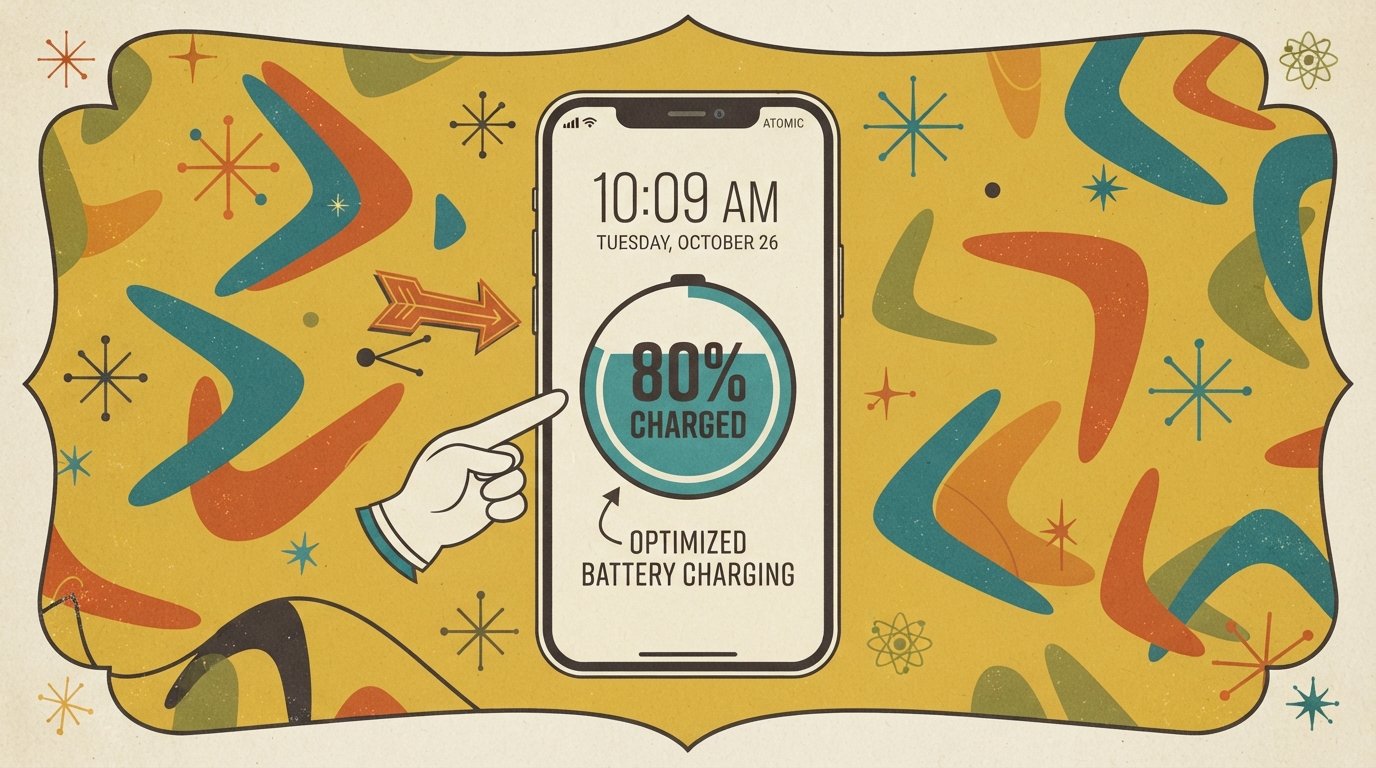
In most cases, your iPhone is not broken — it is following a battery protection feature. Optimized Battery Charging (iOS 13 and later) pauses charging at 80% when it predicts your phone will stay plugged in for a long time. On iPhone 15 and later, a Charge Limit setting may be capping the charge at 80% on purpose. Check Settings > Battery > Charging to see which feature is active, then adjust it.
Quick Facts
| Item | Details |
|---|---|
| Problem | iPhone stops charging at or near 80% |
| Affected Devices | All iPhone models running iOS 13 or later; Charge Limit affects iPhone 15 and newer |
| Most Common Cause | Optimized Battery Charging or a Charge Limit set to 80% |
| Fastest Fix | Check Settings > Battery > Charging, then tap “Charge Now” on the Lock Screen notification |
| Time Needed | 1 minute (settings check) to 30 minutes (hardware troubleshooting) |
| Difficulty | Easy |
| Data Loss Risk | None for most fixes. Resetting all settings may remove saved Wi-Fi passwords and Bluetooth pairings. |
| Tested On / Updated For | iOS 18–27, October 2026 |
[AD SLOT]
Why Does Your iPhone Stop Charging at 80%?
Your iPhone stops at 80% because of a battery protection feature — or, less commonly, because of a hardware problem. Apple designed the 80% threshold to reduce wear on lithium-ion batteries, which age faster when they spend long periods at 100%.
There are five main reasons:
Optimized Battery Charging. Available since iOS 13. It uses on-device machine learning to learn your daily charging routine. When it predicts your iPhone will stay on a charger for an extended period (like overnight), it holds the charge at 80% and finishes the last 20% just before you normally unplug. This feature needs at least 14 days to learn your habits before it activates.
Charge Limit (iPhone 15 and later). You can set a maximum charge level — 80%, 85%, 90%, or 95% — in 5% increments. Your iPhone charges to within a few percentage points of your chosen limit and then stops. If the charge level drops more than 5% while still plugged in, charging resumes.
Overheating protection. If the battery gets too warm during charging, iOS automatically limits charging above 80% to prevent damage. Charging resumes once the temperature drops.
A dirty or damaged charging port. Debris in the Lightning or USB-C port can cause incomplete connections that interrupt charging.
A degraded or failing battery. An aging battery may no longer accept a full charge. Check Settings > Battery > Battery Health & Charging to see your battery’s maximum capacity.
Quick note: If your iPhone occasionally charges to 100% even with a lower limit set, this is normal. Apple says it happens to maintain accurate battery percentage estimates.
Quick Fixes (Try These First)
These are ordered from easiest to hardest. Stop as soon as your iPhone charges normally.
Fix 1: Tap “Charge Now” on the Lock Screen
This is the fastest fix. When Optimized Battery Charging is active, your Lock Screen shows a notification saying when your iPhone will be fully charged. You can override it without changing any settings.
Steps:
Plug in your iPhone and wait for it to reach 80%.
Look at the Lock Screen. You should see a notification about Optimized Battery Charging.
Touch and hold the notification.
Tap Charge Now.
Your iPhone will continue charging to 100%.
This is a one-time override. The next time you charge overnight, Optimized Battery Charging will activate again.
Fix 2: Check Your Charge Limit Setting
If you have an iPhone 15 or later, you may have set a Charge Limit of 80% and forgotten about it. This is the most common cause on newer models.
Steps:
Open Settings > Battery.
Tap Charging.
Look at the Charge Limit setting.
If it shows 80% (or any value below 100%), this is why your iPhone stops charging.
Tap the percentage you want. Choose 100% to allow a full charge, or pick a higher limit like 90% or 95%.
If you want a full charge for just one day (like before a trip), tap Allow Until Tomorrow. The charge limit returns to your set percentage at 6:00 a.m. the next day.
Fix 3: Turn Off Optimized Battery Charging Temporarily
If you need to charge to 100% immediately and the Charge Now option isn’t working, you can temporarily disable Optimized Battery Charging.
Steps for iPhone 15 and later:
Open Settings > Battery > Charging.
Toggle Optimized Battery Charging OFF.
Steps for iPhone 14 and earlier:
Open Settings > Battery > Battery Health & Charging.
Toggle Optimized Battery Charging OFF.
Note: Turning off Optimized Battery Charging can increase wear on your battery over time. Turn it back on when you no longer need a full charge.
Fixes for Overheating and Hardware Issues
If the settings fixes above don’t help, the problem may be physical.
Fix 4: Cool Down Your iPhone
iOS limits charging above 80% when the battery gets too warm. This is a safety feature, not a bug.
Steps:
Unplug your iPhone and remove its case.
Move it to a cooler location — away from direct sunlight, heaters, or other warm surfaces.
Wait 10–15 minutes for the iPhone to cool down.
Plug it back in and check if charging continues past 80%.
Avoid charging your iPhone in hot cars, on direct sunlight, or under pillows. These are common causes of heat-related charging pauses.
Fix 5: Clean the Charging Port
Dust, lint, and debris inside the charging port can interrupt charging and prevent it from completing.
Steps:
Turn off your iPhone and unplug the cable.
Use a flashlight to look inside the charging port. Look for visible lint or debris.
Use a wooden or plastic toothpick to gently scrape out debris. Angle the toothpick toward the back wall of the port, away from the delicate pins.
Use compressed air to blow out loose dust. Keep the can upright to avoid spraying liquid.
Do not use metal objects, and do not push hard. If you see damage to the pins inside the port, stop and take it to a repair shop.
Plug the cable back in and check charging.
Fix 6: Try a Different Cable and Charger
A worn cable or a low-quality charger can cause charging to stall or stop before reaching full.
Steps:
Unplug your current cable and adapter.
Try a different Apple-certified Lightning or USB-C cable.
Try a different wall adapter, ideally one rated at 20W or higher for fast charging.
Plug into a different wall outlet or power strip.
Check if charging continues past 80%.
If a different cable works, the original cable was the problem. Replace it with a certified cable.
Fix 7: Force Restart Your iPhone
A force restart clears temporary software glitches that can interfere with charging detection.
Steps for iPhone 8 and later:
Press and quickly release the Volume Up button.
Press and quickly release the Volume Down button.
Press and hold the Side button until the Apple logo appears.
Release and wait for the iPhone to restart.
Plug in the charger and check if charging continues.
Comparison Table: Which Fix Should You Try?
| Fix | Works For | Time | Data Loss Risk |
|---|---|---|---|
| Tap “Charge Now” | One-time override of Optimized Battery Charging | 10 sec | None |
| Check Charge Limit | iPhone 15+ stuck at 80% by setting | 1 min | None |
| Turn off Optimized Charging | Persistent 80% pause | 2 min | None |
| Cool down iPhone | Heat-related charging pause | 15 min | None |
| Clean charging port | Debris blocking connection | 5 min | None |
| Try different cable | Worn or faulty cable | 2 min | None |
| Force restart | Software glitch in charging detection | 1 min | None |
Decision Tree: What to Do Next
Lock Screen shows “Optimized Battery Charging”? → Go to Fix 1 (tap Charge Now).
iPhone 15 or later and stuck at exactly 80%? → Go to Fix 2 (check Charge Limit).
iPhone feels warm while charging? → Go to Fix 4 (cool it down).
Charging is intermittent or cuts in and out? → Go to Fix 5 (clean the port) then Fix 6 (try a different cable).
Nothing works after all fixes? → Check battery health (see below). You may need a battery replacement.
[AD SLOT]
How to Check Your Battery Health
If your iPhone still won’t charge past 80% after all the fixes above, check your battery’s maximum capacity. This tells you whether the battery itself is degrading.
Steps:
Open Settings > Battery.
Tap Battery Health & Charging.
Look at Maximum Capacity.
If maximum capacity is below 80%, Apple considers the battery degraded and recommends service. A degraded battery may not accept a full charge, causing it to stop at 80% or below.
You can also check the Peak Performance Capability section. If it shows a message about unexpected shutdowns, your battery may need replacement.
Quick note: Apple says iPhone 15 models and later can retain 80% of their original capacity at 1,000 complete charge cycles under ideal conditions. Batteries below 80% capacity may behave differently.
How to Back Up Before Any Repair
If you need to take your iPhone to Apple Support or an authorized repair center, back up your data first.
Open Settings > [Your Name] > iCloud > iCloud Backup.
Make sure Back Up This iPhone is turned on.
Tap Back Up Now.
Wait for the backup to complete. Keep your iPhone connected to Wi-Fi and a charger during this process.
Computer backup:
Connect your iPhone to a Mac or PC.
On a Mac with macOS Catalina or later, open Finder. On a Windows PC, open the Apple Devices app or iTunes.
Select your device, then click Back Up Now.
Apple recommends backing up your iPhone before any service appointment to protect your data.
Common Mistakes to Avoid
Assuming the battery is broken. In most cases, 80% charging is a feature working as designed, not a fault.
Turning off Optimized Battery Charging permanently. This increases battery wear over time. Use the Charge Now override instead.
Using cheap uncertified cables. Non-certified Lightning or USB-C cables can cause charging problems and may damage the battery.
Charging in a hot environment. Heat is the biggest enemy of battery health. Avoid charging in direct sunlight, in a hot car, or under a pillow.
Using metal objects to clean the charging port. Metal can damage the pins. Use a wooden toothpick or compressed air.
Ignoring battery health warnings. If Settings shows “Service Recommended” or your maximum capacity is below 80%, replace the battery.
When It’s a Hardware Problem
If your iPhone still stops at 80% after all fixes and a force restart, the issue may be hardware-related.
Signs of a hardware problem include:
Maximum battery capacity is below 80%.
Settings shows a “Service Recommended” message.
The charging port is visibly damaged or loose.
Charging only works with the cable held at a specific angle.
The iPhone gets unusually hot during charging even in a cool environment.
What repair involves:
Battery replacement: Apple charges $49–$99 depending on your model and whether you have AppleCare+. Authorized service providers offer similar pricing.
Charging port repair: $60–$120 depending on the model.
Software diagnostics: Apple can run a remote diagnostic test to check your battery and charging hardware before you visit a store.
If your iPhone is under warranty or covered by AppleCare+, contact Apple Support first. Use the Apple Support app or visit getsupport.apple.com to chat with an advisor or book a Genius Bar appointment.
How to Prevent This from Happening Again
Keep Optimized Battery Charging on. It reduces battery wear and extends lifespan. Override it with Charge Now when you need a full charge.
Avoid extreme temperatures. Charge your iPhone in a cool, ventilated area. Remove thick cases during fast charging.
Use Apple-certified cables and chargers. They are designed to work safely with your iPhone’s charging system.
Clean the charging port regularly. Check for lint every few months, especially if you carry your iPhone in a pocket.
Monitor battery health. Check Settings > Battery > Battery Health & Charging every few months. If maximum capacity drops below 80%, consider a replacement.
Common Questions
Is it normal for an iPhone to stop charging at 80%?
Yes, in most cases. Optimized Battery Charging (iOS 13 and later) intentionally pauses charging at 80% when it predicts you won’t need a full charge for a while. This reduces battery wear. Your iPhone finishes charging to 100% before you normally unplug it.
How do I make my iPhone charge past 80%?
Tap and hold the “Optimized Battery Charging” notification on your Lock Screen, then tap “Charge Now.” Your iPhone will continue charging to 100%. On iPhone 15 and later, also check Settings > Battery > Charging and raise the Charge Limit if it is set to 80%.
Why does my iPhone 15 stop at 80% when charging?
On iPhone 15 and later, you may have set a Charge Limit of 80% in Settings > Battery > Charging. Your iPhone stops at that limit by design. Change it to 100% or a higher percentage to charge further.
Does Optimized Battery Charging damage my battery?
No. It is designed to protect your battery by reducing the time it spends fully charged. Lithium-ion batteries age faster at 100%. Keeping the charge at 80% for most of the night extends the battery’s overall lifespan.
Why does my iPhone feel warm when charging to 80%?
Charging generates heat, especially fast charging. Your iPhone may get slightly warm, which is normal. If it gets too hot, iOS limits charging above 80% to prevent damage. Move your iPhone to a cooler location and it will resume charging.
How do I turn off the 80% charging limit?
On iPhone 15 and later, go to Settings > Battery > Charging and change the Charge Limit to 100%. On older iPhones, go to Settings > Battery > Battery Health & Charging and toggle Optimized Battery Charging off. Turning it off increases battery wear over time.
What should I do if my iPhone still won’t charge past 80% after all fixes?
Check your battery health in Settings > Battery > Battery Health & Charging. If maximum capacity is below 80%, or if Settings shows “Service Recommended,” contact Apple Support. Your battery may need replacement. A dirty charging port or faulty cable can also cause this.
Does using a non-Apple charger cause the 80% limit?
Not directly. A non-certified charger may cause slower or inconsistent charging, but it does not trigger the 80% pause. That pause comes from Optimized Battery Charging or a Charge Limit setting. However, a faulty cable or charger can cause charging to stop prematurely.
Key Takeaways
In most cases, stopping at 80% is Optimized Battery Charging working as designed — not a fault.
Tap “Charge Now” on the Lock Screen notification to override it for one charge cycle.
iPhone 15 and later may have a Charge Limit set to 80% in Settings > Battery > Charging.
Overheating pauses charging above 80% to protect the battery. Move your iPhone to a cooler location.
Clean the charging port and try a different Apple-certified cable if charging is intermittent.
A force restart clears temporary software glitches that affect charging detection.
Check Settings > Battery > Battery Health & Charging. If capacity is below 80%, replace the battery.
Back up your iPhone before any repair appointment.
Official Resources
Apple Support — Charge Limit and Optimized Battery Charging: Visit support.apple.com and search for “charge limit” or “optimized battery charging.”
Apple Support — If your iPhone won’t charge: Visit support.apple.com and search for “iPhone won’t charge.”
Apple Support — Battery and performance: Visit support.apple.com and search for “iPhone battery and performance.”
Apple Support — Contact: Use the Apple Support app or visit getsupport.apple.com to chat with an advisor or book a Genius Bar appointment.
Apple Authorized Service Providers: Visit locate.apple.com to find an authorized repair center near you.