Quickly Set Up iPhone Not Working? Here’s How to Fix It
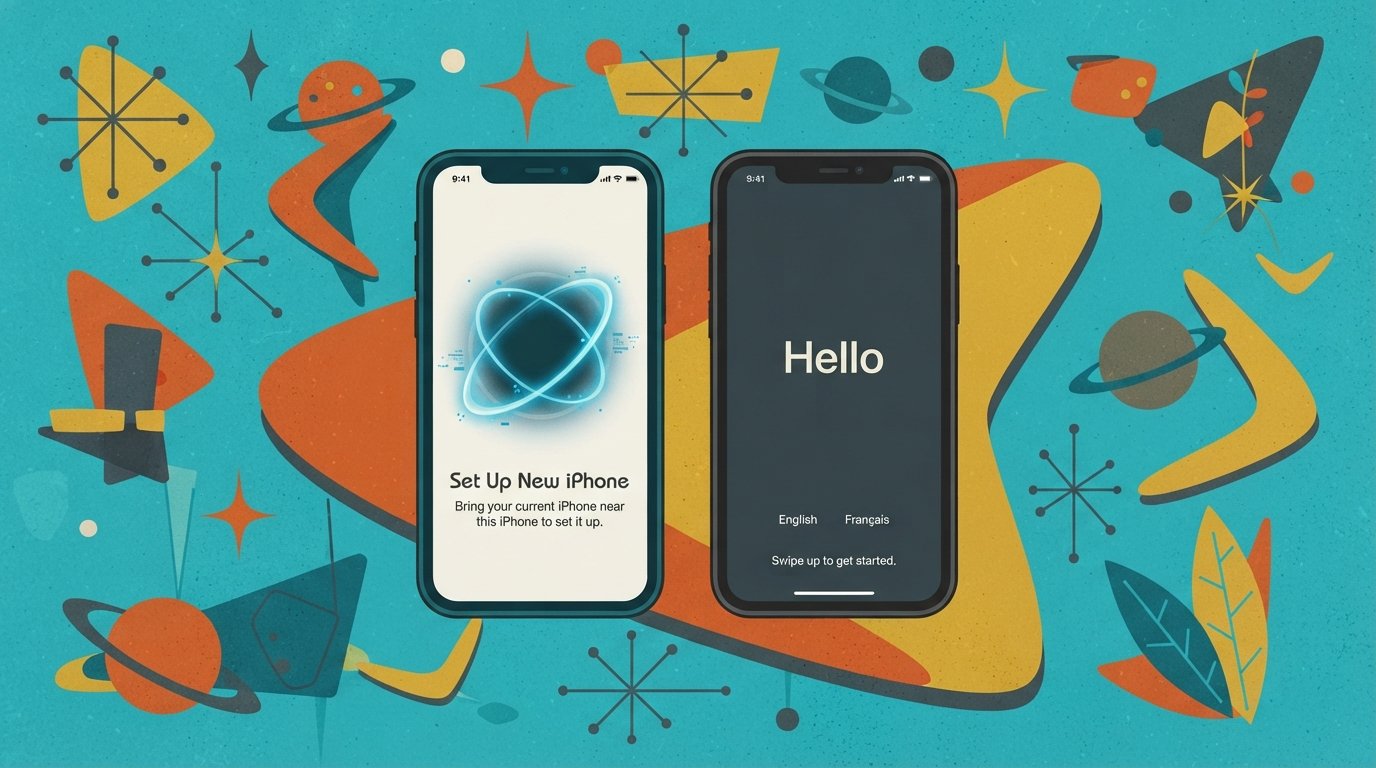
If Quick Start is not working on your iPhone, the most common cause is a disabled Bluetooth or Wi-Fi connection, or both iPhones running different iOS versions. The fastest fix: turn on Wi-Fi and Bluetooth on both devices, place them side by side, and restart both phones before trying Quick Start again.
Quick Facts
| Item | Details |
|---|---|
| Problem | iPhone Quick Start setup not working, stuck, or failing to transfer data |
| Affected Devices | All iPhones running iOS 11 or later, including iPhone 16, 15, 14, 13, SE, and newer models |
| Most Common Cause | Bluetooth or Wi-Fi disabled, outdated iOS on one device, or devices too far apart |
| Fastest Fix | Enable Wi-Fi and Bluetooth on both iPhones, restart both, and retry Quick Start |
| Time Needed | 5–15 minutes for most fixes |
| Difficulty | Easy |
| Data Loss Risk | None for basic fixes; backup required before DFU restore |
| Tested On / Updated For | iOS 26.5.1 · October 2026 |
[AD SLOT]
What Causes Quick Start to Fail on iPhone?
Quick Start fails when the two iPhones cannot communicate properly over Bluetooth and Wi-Fi. This can happen for several reasons. The most common cause is that Bluetooth or Wi-Fi is turned off on one or both devices.
Other common causes include:
Outdated iOS. Quick Start requires iOS 11 or later on both devices. If one phone runs an older version, the transfer will not start.
Devices too far apart. Quick Start uses proximity to detect the other iPhone.
Low storage on the new iPhone. The new device needs enough free space for all data from the old phone.
Apple server issues. Activation servers can be temporarily unavailable.
Activation Lock. If Find My iPhone is enabled on the old device with an unknown Apple ID, setup stops.
Management profiles. A school or work MDM profile on the old iPhone can block Quick Start.
Quick Fixes (Try These First)
Follow these steps in order. Most people fix the problem within the first three fixes.
Fix 1: Force Restart Both iPhones
A force restart clears temporary glitches that block Quick Start. It does not erase data.
Press and quickly release the Volume Up button on the first iPhone.
Press and quickly release the Volume Down button.
Press and hold the Side button until the Apple logo appears (about 10 seconds).
Repeat the same steps on the second iPhone.
Wait for both phones to restart and try Quick Start again.
Fix 2: Turn On Wi-Fi and Bluetooth on Both iPhones
Quick Start depends on both Bluetooth and Wi-Fi to detect and transfer data.
On both iPhones, go to Settings > Wi-Fi and turn it on.
Go to Settings > Bluetooth and turn it on.
Connect both devices to the same Wi-Fi network.
Avoid guest or restricted networks. Use a standard home or office network.
Retry Quick Start.
Fix 3: Keep Both iPhones Close Together
Quick Start uses proximity to detect the source device. If the phones are too far apart, the transfer will not begin.
Place both iPhones side by side on a flat surface.
Remove any thick cases that might block the signal.
Make sure no metal objects are between the phones.
Retry Quick Start.
Fix 4: Update iOS on Both iPhones
Compatibility issues are common when one iPhone runs an older iOS version.
On each iPhone, go to Settings > General > Software Update.
Install any available updates.
Restart both devices after updating.
Retry Quick Start.
Fix 5: Skip Apple Account Sign-In During Setup
Apple Account server issues can stop setup from completing.
Follow the on-screen instructions until you reach the Apple Account page.
Tap “Forgot password or Don’t have an Account.”
Tap “Set Up Later in Settings.”
Complete the rest of the setup without signing in.
Once setup is done, go to Settings > Sign In to Apple Account and enter your credentials.
Fix 6: Set Up Cellular Later
eSIM activation issues on the carrier side can block setup.
Follow the on-screen instructions until you reach “Transfer Your Phone Number.”
Tap “Set Up Later in Settings.”
Complete the rest of the setup.
After setup, go to Settings > Cellular > Set Up Cellular to add your eSIM.
Fix 7: Try a Wired Transfer
A wired transfer is more reliable when wireless Quick Start keeps failing.
Get a Lightning-to-USB cable and a Lightning-to-USB 3 adapter (or the appropriate cable for your iPhone models).
Connect the old iPhone to the new iPhone using the cable.
Follow the Quick Start prompts for a faster, more stable transfer.
Comparison Table: Which Fix to Try
| Fix | Works For | Time | Data Loss Risk |
|---|---|---|---|
| Force restart both iPhones | Glitches, frozen setup | 2 min | None |
| Enable Wi-Fi and Bluetooth | Connection failures | 3 min | None |
| Keep devices close | Detection failures | 1 min | None |
| Update iOS | Compatibility errors | 10 min | None |
| Skip Apple Account | Server errors | 5 min | None |
| Set up cellular later | eSIM activation issues | 5 min | None |
| Wired transfer | Wireless Quick Start failures | 10 min | None |
| Reset network settings | Persistent connection bugs | 3 min | None (resets Wi-Fi passwords) |
| DFU restore | Deep software corruption | 30 min | Yes — backup first |
Decision Tree
If Quick Start does not detect the other iPhone:
Go to Fix 2 (Wi-Fi/Bluetooth) and Fix 3 (proximity).
If Quick Start detects but fails to transfer:
Go to Fix 1 (force restart) and Fix 4 (update iOS).
If setup is stuck on Apple Account sign-in:
Go to Fix 5 (skip Apple Account).
If setup is stuck on cellular activation:
Go to Fix 6 (set up cellular later).
If nothing works:
Go to Fix 7 (wired transfer) or the advanced fixes below.
Advanced Fixes
Reset Network Settings
Network Reset clears saved Wi-Fi passwords and Bluetooth pairings. Use it when connection bugs block Quick Start.
Warning: This resets Wi-Fi passwords, VPN settings, and Bluetooth pairings. It does not delete photos or apps.
Go to Settings > General > Transfer or Reset iPhone.
Tap Reset > Reset Network Settings.
Enter your passcode.
Restart both iPhones and retry Quick Start.
DFU Mode Restore (Last Resort)
DFU (Device Firmware Update) mode reinstalls iOS and firmware. Use it only if every other fix fails.
Warning: This erases all data on your iPhone. Back up first.
Back up your iPhone to iCloud or a computer.
Connect the iPhone to a computer with a USB cable.
Quickly press Volume Up, then Volume Down.
Press and hold the Side button until the screen goes black.
While still holding Side, press and hold Volume Down for 5 seconds.
Release Side but keep holding Volume Down for 10 seconds.
Your computer should detect the iPhone in DFU mode. Follow the prompts in Finder or iTunes to restore.
How to Avoid Losing Data
Before any risky step, back up your iPhone:
iCloud backup: Go to Settings > [Your Name] > iCloud > iCloud Backup > Back Up Now.
Computer backup: Connect to a Mac or PC and use Finder or iTunes to back up.
Charging fixes like force restart, iOS update, and network reset do not delete data. DFU restore and factory reset do.
Common Mistakes
Ignoring Wi-Fi and Bluetooth. Quick Start needs both to be on.
Leaving one iPhone on an old iOS version. Update both devices first.
Placing phones too far apart. Keep them side by side.
Not having enough storage on the new iPhone. Check Settings > General > iPhone Storage.
Trying to sign in to Apple Account when servers are down. Use “Set Up Later in Settings.”
Forgetting about Activation Lock. The old iPhone must have Find My turned off with a known Apple ID.
When It’s a Hardware Problem
If every software fix fails and the iPhone will not complete setup, the problem may be hardware. Common hardware issues include:
Damaged charging port preventing wired transfer.
Faulty Wi-Fi or Bluetooth antenna blocking Quick Start detection.
Logic board failure preventing activation.
What repair involves: A repair shop will test the Wi-Fi and Bluetooth antennas, inspect the charging port, and run diagnostics. If the logic board has failed, board-level repair is required.
How to Prevent Setup Problems
Update both iPhones to the latest iOS before starting Quick Start.
Charge both devices to at least 50% or keep them plugged in.
Use a stable Wi-Fi network and avoid guest networks.
Keep both phones close together on a flat surface.
Have your Apple ID and password ready before you begin.
Turn off Find My on the old iPhone only if you are keeping it or selling it after a proper reset.
[AD SLOT]
Common Questions
Why is Quick Start not working on my iPhone?
Quick Start fails when Bluetooth or Wi-Fi is off, the devices are too far apart, or one iPhone runs an older iOS version. It can also fail due to Apple server issues, Activation Lock, or a management profile. Enable both connections and update iOS on both devices.
Can I set up my iPhone without Quick Start?
Yes. You can restore from an iCloud backup, use iTunes or Finder on a computer, or set up as a new iPhone without transferring data. During setup, choose “Set Up as New” or “Restore from iCloud Backup” instead of “Transfer from iPhone.”
Why is my new iPhone stuck on “Preparing to Transfer”?
This usually means the transfer is slow, not frozen. Large photo libraries can take over an hour. If there is no progress for 60–90 minutes, force restart both iPhones and try again on a stronger Wi-Fi network. A wired transfer is often faster.
How do I fix iPhone setup stuck on the Hello screen?
Force restart the iPhone first. If that does not work, connect it to a computer and use Finder or iTunes to restore it. You can also try a different Wi-Fi network or skip Apple Account sign-in during setup. The Hello screen often appears after a reset or update.
Does Quick Start work between Android and iPhone?
No. Quick Start only works between iPhones. If you are moving from Android, use the “Move from Android” option during setup. This requires the Move to iOS app from the Google Play Store.
What should I do if my iPhone says “Activation Server Unavailable”?
Check Apple’s System Status page for iOS Device Activation. If the box is not green, wait and try again later. If the server is fine, connect to a reliable Wi-Fi network or use a computer to activate the iPhone. Contact your carrier if the SIM or eSIM is unsupported.
Can Activation Lock stop iPhone setup?
Yes. If Find My iPhone is enabled on the old device with an Apple ID you do not know, Activation Lock blocks setup. You need the original Apple ID and password, or the previous owner must remove the device from their account. Apple cannot bypass this.
How long does Quick Start take on iPhone?
Quick Start can take 15 minutes to over an hour, depending on how much data you are transferring. Photos and videos take the longest. Keep both iPhones plugged in and close together during the transfer. Do not lock the screens.
Key Takeaways
The most common cause of Quick Start failure is disabled Bluetooth or Wi-Fi on one or both iPhones.
Force restart both devices first. This clears glitches without erasing data.
Update iOS on both iPhones before trying Quick Start again.
Keep both devices close together and connected to the same Wi-Fi network.
If Apple Account sign-in fails, use “Set Up Later in Settings” and sign in after setup.
A wired transfer is more reliable when wireless Quick Start keeps failing.
Activation Lock requires the original Apple ID and password. Apple cannot bypass it.
DFU mode erases all data. Back up before using it.
Official Resources
Apple Support: “If you can’t activate your iPhone or iPad” — search on support.apple.com
Apple Support: “Use Quick Start to transfer data to a new iPhone” — support.apple.com
Apple Support: “If your iPhone won’t turn on or is frozen” — support.apple.com
Apple Support: “Restore your iPhone from a backup” — support.apple.com
Apple Support: “Check Apple’s System Status” — apple.com/support/systemstatus