Where Is Do Not Disturb on iPhone?
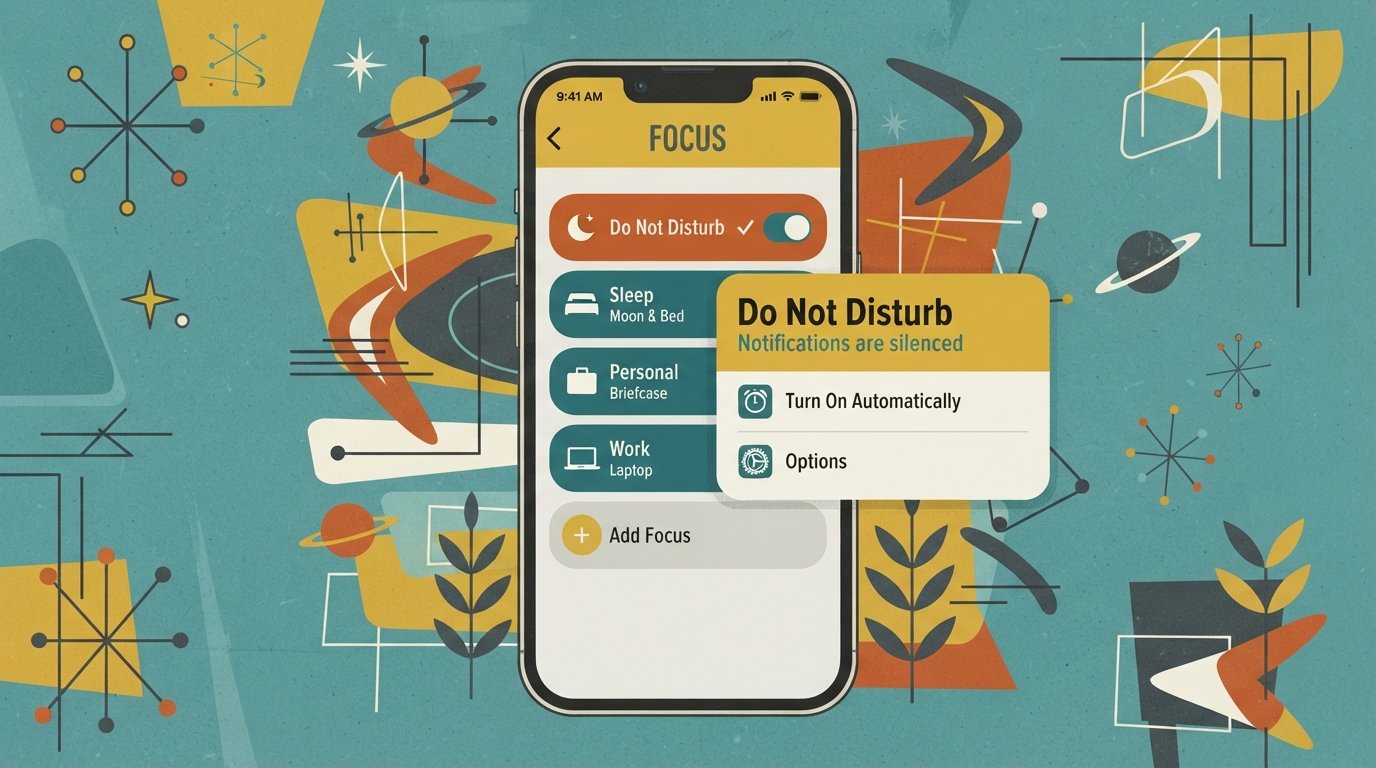
Do Not Disturb is located in two places on iPhone: Control Center (swipe down from the top-right corner) and Settings > Focus > Do Not Disturb. Since iOS 15, Apple moved Do Not Disturb inside the Focus menu, which is why it no longer appears as a standalone option in Settings.
Quick Facts
| Item | Details |
|---|---|
| Problem | Can’t find the Do Not Disturb setting on iPhone |
| Affected Devices | All iPhones running iOS 15 or later, including iPhone 16, 15, 14, 13, SE, and older models |
| Most Common Cause | Do Not Disturb was moved into the Focus menu starting with iOS 15 |
| Fastest Fix | Swipe down from the top-right corner and tap the Focus button |
| Time Needed | Under 10 seconds |
| Difficulty | Easy |
| Data Loss Risk | None |
| Tested On / Updated For | iOS 26.5.1 · October 2026 |
[AD SLOT]
How to Find Do Not Disturb on iPhone
You can access Do Not Disturb in four different ways. The fastest method is Control Center.
Method 1: Control Center (Fastest)
Swipe down from the top-right corner of your screen. On iPhone SE and iPhone 8 or earlier, swipe up from the bottom edge instead.
Look for the Focus button. It shows a crescent moon icon when Do Not Disturb is active.
Tap the Focus button once to toggle Do Not Disturb on or off.
Touch and hold the Focus button to see options like “For 1 hour,” “Until this evening,” or “Until I leave this location.”
When Do Not Disturb is on, a crescent moon icon appears in the status bar next to the time.
Method 2: Settings App
Open the Settings app on your iPhone.
Tap Focus. On older iOS versions, you may see Do Not Disturb listed directly.
Tap Do Not Disturb to open its settings.
Turn the toggle on or off at the top of the screen.
This is where you customize schedules, allowed contacts, and other DND options.
Method 3: Ask Siri
Press and hold the Side button or say “Hey Siri.”
Say: “Turn on Do Not Disturb” or “Turn off Do Not Disturb.”
Siri confirms and activates the change.
This works even when your hands are busy or your phone is across the room.
Method 4: Action Button (iPhone 15 Pro and Later)
Go to Settings > Action Button.
Swipe to the Focus option.
Choose Do Not Disturb from the dropdown menu.
Press and hold the Action Button to toggle DND on and off.
This gives you a physical button shortcut for Do Not Disturb.
What Is the Difference Between Do Not Disturb and Focus?
Do Not Disturb is one type of Focus mode. Focus is Apple’s broader system for managing notifications, introduced in iOS 15.
Do Not Disturb silences all calls and notifications. It is the most straightforward option.
Focus modes (Work, Personal, Sleep, Driving) let you choose which people and apps can reach you. You can create custom Focus modes for specific situations.
Think of Do Not Disturb as the “mute everything” option, while other Focus modes are more selective. All Focus modes live under Settings > Focus.
| Feature | Do Not Disturb | Other Focus Modes |
|---|---|---|
| Location | Inside Focus menu | Inside Focus menu |
| Customization | Limited | Fully customizable |
| Allows specific people | Yes (via People settings) | Yes |
| Allows specific apps | Yes (via Apps settings) | Yes |
| Schedule support | Yes | Yes |
| Control Center access | Yes | Yes |
Why Can’t I Find Do Not Disturb in Settings?
Do Not Disturb disappeared from the main Settings menu after iOS 15. Apple moved it into the Focus section. If you are looking for it where it used to be, you will not find it.
Here is what changed:
Before iOS 15: Do Not Disturb had its own entry in Settings.
iOS 15 and later: Do Not Disturb became a Focus mode. You now find it under Settings > Focus > Do Not Disturb.
If you still cannot find it, make sure your iPhone is running iOS 15 or later. Go to Settings > General > About to check your iOS version.
Troubleshooting: Do Not Disturb Not Working
If Do Not Disturb is on but you are still getting notifications, or if you cannot turn it off, try these fixes.
Fix 1: Check for an Active Schedule
A schedule can turn Do Not Disturb on automatically.
Go to Settings > Focus > Do Not Disturb.
Scroll to Set a Schedule.
Check for any active schedules. Delete or disable them if they are causing unwanted DND.
Fix 2: Check for a Lock Screen Connection
In iOS 16 and later, a Lock Screen wallpaper can be linked to Do Not Disturb.
Lock your iPhone.
Tap and hold the Lock Screen to open the wallpaper gallery.
Swipe through wallpapers. If one shows “Do Not Disturb” at the bottom, that wallpaper turns on DND automatically.
Switch to a wallpaper that is not linked to DND.
Fix 3: Restart Your iPhone
A software glitch can keep Do Not Disturb stuck.
Press and hold the Side button and either Volume button.
Slide to power off.
Wait 30 seconds, then press the Side button to turn it back on.
Check if DND is still active.
Fix 4: Update iOS
Go to Settings > General > Software Update.
Download and install any available update.
Restart your iPhone and test DND again.
Fix 5: Reset All Settings
Warning: This resets Wi-Fi passwords, wallpapers, and Bluetooth pairings. It does not delete photos or apps.
Go to Settings > General > Transfer or Reset iPhone.
Tap Reset > Reset All Settings.
Enter your passcode.
Set up your iPhone again and check DND.
Decision Tree
If you cannot find Do Not Disturb at all:
Go to Method 1 (Control Center) or Method 2 (Settings > Focus).
If Do Not Disturb is on but you still get notifications:
Go to Fix 1 (check schedule) and Fix 2 (Lock Screen connection).
If Do Not Disturb will not turn off:
Go to Fix 3 (restart) and Fix 4 (update iOS).
If nothing works:
Go to Fix 5 (reset all settings) or contact Apple Support.
Common Mistakes
Looking for Do Not Disturb in the main Settings list. It moved to Focus in iOS 15.
Confusing Do Not Disturb with Silent Mode. Silent Mode only mutes sounds; DND blocks calls and notifications from lighting up your screen.
Forgetting about scheduled DND. If DND keeps turning on, check for an active schedule.
Ignoring the Lock Screen link. A wallpaper can trigger DND automatically.
Not updating iOS. Updates fix bugs that can affect Focus modes.
How to Prevent Do Not Disturb Problems
Keep iOS updated. Go to Settings > General > Software Update regularly.
Review your Focus schedules every few months. Remove old or unwanted schedules.
Check your Lock Screen wallpaper if DND turns on unexpectedly.
Use Control Center for quick toggles instead of digging through Settings.
Set allowed contacts in Settings > Focus > Do Not Disturb > People so important calls come through.
[AD SLOT]
Common Questions
Where is Do Not Disturb on iPhone 16?
On iPhone 16, Do Not Disturb is inside Settings > Focus > Do Not Disturb. You can also swipe down from the top-right corner to open Control Center and tap the Focus button. Siri can turn it on or off by voice.
Why did Do Not Disturb disappear from my iPhone Settings?
Apple moved Do Not Disturb into the Focus menu starting with iOS 15. It is no longer a standalone option in Settings. You now find it under Settings > Focus > Do Not Disturb, or in Control Center.
How do I turn off Do Not Disturb quickly?
Swipe down from the top-right corner to open Control Center. Tap the Focus button, which shows a crescent moon icon if DND is active. If another Focus mode is on, tap its icon to turn it off. You can also ask Siri to turn off Do Not Disturb.
What is the difference between Do Not Disturb and Focus on iPhone?
Do Not Disturb is one type of Focus mode. Focus is the broader system that includes Work, Personal, Sleep, and Driving modes. Do Not Disturb silences everything, while other Focus modes let you choose which people and apps can reach you.
Why is my Do Not Disturb stuck on?
A scheduled DND, a linked Lock Screen wallpaper, or a software glitch can keep DND on. Check Settings > Focus > Do Not Disturb for active schedules. Restart your iPhone or update iOS if the problem continues.
Can I schedule Do Not Disturb on iPhone?
Yes. Go to Settings > Focus > Do Not Disturb > Set a Schedule. Tap Add Schedule, choose Time, and set your start and end times. You can also choose specific days for the schedule to repeat.
Does Do Not Disturb block alarms on iPhone?
No. Alarms still sound when Do Not Disturb is on. DND only silences calls, messages, and notifications. Your alarm will ring at the set time unless you manually turn it off.
How do I allow certain calls during Do Not Disturb?
Go to Settings > Focus > Do Not Disturb > People. Tap Allow Notifications From and add contacts. You can also enable Allow Repeated Calls so a second call within three minutes comes through.
Key Takeaways
Do Not Disturb is located in Control Center (swipe down from top-right) and Settings > Focus > Do Not Disturb.
Apple moved Do Not Disturb into the Focus menu starting with iOS 15. It is not a standalone Settings option anymore.
The fastest way to toggle DND is Control Center. Touch and hold the Focus button for timed options.
Siri can turn Do Not Disturb on or off by voice command.
If DND keeps turning on, check for active schedules or a Lock Screen wallpaper linked to DND.
Do Not Disturb blocks calls and notifications but does not block alarms.
iPhone 15 Pro and later can assign Do Not Disturb to the Action Button for one-press access.
Update iOS regularly to avoid bugs that affect Focus modes.
Official Resources
Apple Support: “Set Do Not Disturb on iPhone” — search on support.apple.com
Apple Support: “Set up a Focus on iPhone” — support.apple.com
Apple Support: “How to turn Do Not Disturb off or on for iPhone” — support.apple.com
Apple Support: “Change your Do Not Disturb settings” — support.apple.com