
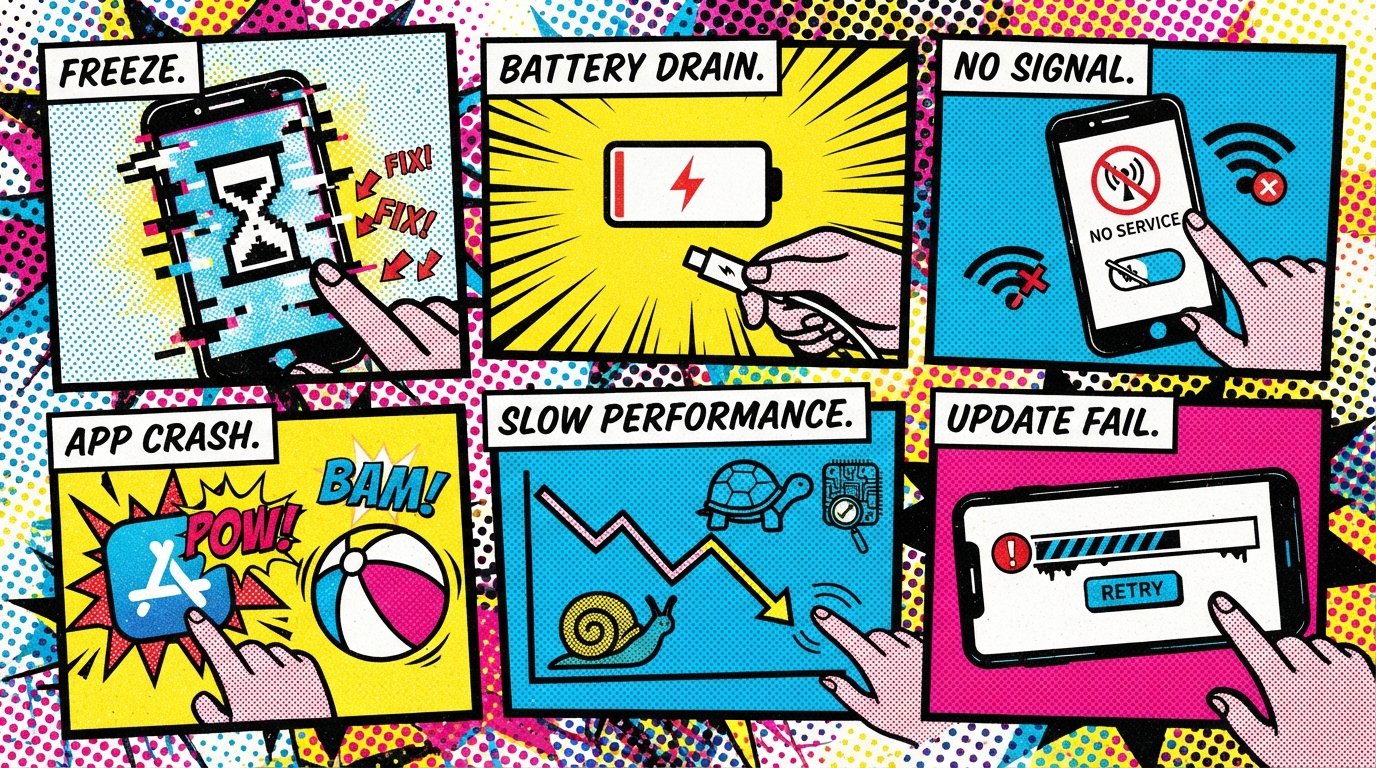
Fix Your Phone’s Errors in Minutes, Step by Step
Most phone errors come down to one of four causes: a failed software update, a full storage drive, a bad app, or a network glitch. The fastest universal fix is a force restart — hold Power + Volume Down on Android, or Volume Up, Volume Down, then Side button on iPhone. If that doesn’t work, the guides below walk you through every common error, one step at a time.
Quick Facts
| Item | Details |
|---|---|
| Problem | Any common phone or app error: boot loops, crashes, connection failures, battery drain |
| Affected Devices | Android (Samsung, Google Pixel, Xiaomi, Motorola, OnePlus) and iPhone (iOS 15–27) |
| Most Common Cause | Failed software update, full storage, corrupted cache, or a bad third-party app |
| Fastest Fix | Force restart, then free up storage, then clear app cache |
| Time Needed | 2 minutes (force restart) to 30 minutes (advanced fixes) |
| Difficulty | Easy to moderate |
| Data Loss Risk | None for most fixes. Factory reset and DFU Mode erase everything. |
| Tested On / Updated For | Android 13–17 and iOS 18–27, October 2026 |
[AD SLOT]
What Causes Most Phone Errors?
Most phone errors trace back to a short list of root causes. Identifying the cause helps you pick the right fix faster.
Software update failures. An interrupted or incomplete update leaves system files half-installed. This is the leading cause of boot loops on both Android and iPhone. Google’s July 2026 Pixel update fixed a boot loop issue that affected Pixel 6 through Pixel 10 devices. Apple’s iOS 27 adds a built-in Recovery Mode that lets you reinstall iOS without a computer.
Full storage. Android needs at least 10% of storage free to run properly. When storage drops below that threshold, apps crash, updates fail, and the phone can get stuck on the boot screen. iPhone has a similar problem — system data can silently consume 100 GB or more.
Corrupted cache. Temporary files stored by apps and the system can become damaged. This causes app crashes, playback errors, and connection failures. Clearing the cache often fixes these problems without deleting personal data.
Bad third-party apps. An app that conflicts with the system can cause boot loops, battery drain, overheating, and Wi-Fi drops. Safe Mode helps you identify the culprit by disabling all third-party apps.
Network and certificate issues. Wrong date and time settings break SSL certificate verification. This causes WhatsApp’s “date is inaccurate” error, iPhone’s “cannot verify server identity” error, and Play Store download failures.
Hardware faults. A failing battery, damaged charging port, or faulty storage chip causes problems that no software fix can resolve. If a phone only boots while plugged in, or if it loops even after a factory reset, the issue is hardware-related.
Quick Fixes to Try First
These universal fixes resolve most phone errors. Try them in order before moving to device-specific guides.
Fix 1: Force Restart
A force restart clears temporary glitches and frozen processes. It does not delete any data.
Android:
Hold Power + Volume Down for 10–15 seconds.
Release when the screen turns off or the logo appears.
Wait for the phone to boot.
iPhone 8 and later:
Press and quickly release Volume Up.
Press and quickly release Volume Down.
Press and hold the Side button until the Apple logo appears.
Samsung Galaxy: Samsung’s support page confirms holding Side button + Volume Down for at least 7 seconds restarts a frozen Galaxy device.
Fix 2: Free Up Storage
Android needs 10% of storage free. iPhone needs breathing room for system data. Low storage causes crashes, failed updates, and boot loops.
Steps:
Open Settings > Storage (Android) or Settings > General > iPhone Storage (iPhone).
Check how much free space you have. Aim for at least 2–3 GB free.
Delete old downloads, unused apps, and duplicate files.
On Android, use Files by Google or Device Care to find hidden files.
On iPhone, check Recently Deleted in Photos and clear it.
Fix 3: Clear App Cache
Corrupted cache files cause app crashes, playback errors, and connection failures. Clearing the cache is safe and does not delete personal data.
Android:
Open Settings > Apps.
Find the problematic app and tap it.
Tap Storage & cache > Clear cache.
Do not tap Clear data — that deletes your account and app settings.
iPhone: iOS does not have a separate cache-clearing option. You must offload or reinstall the app.
Fix 4: Check Date and Time
Wrong date or time breaks SSL certificate verification. This causes WhatsApp’s “date is inaccurate” error, iPhone’s “cannot verify server identity” error, and Play Store download failures.
Steps:
Open Settings > Date & Time (Android) or Settings > General > Date & Time (iPhone).
Turn on Automatic date and time and Automatic time zone.
Restart your phone and reopen the affected app.
WhatsApp’s official help page recommends enabling automatic date and time to fix incorrect timestamps.
Fixes for Android Errors
These guides cover the most common Android errors. Each one links to a full step-by-step article.
Android Phone Stuck on Boot Screen
A boot loop usually happens after a failed update, full storage, or a bad app. Full guide: Android Phone Stuck on Boot Screen? 7 Fixes That Work
Quick version:
Force restart (Power + Volume Down, 10–15 seconds).
Boot into Safe Mode (hold Volume Down when the logo appears).
Wipe cache partition from Recovery Mode (Power + Volume Up).
Factory reset as a last resort — this erases all data.
Android “App Not Installed” Error
This error means the package installer refused the installation. The most common cause is a signature conflict — an older version of the app with a different signing key is already installed. Full guide: Android “App Not Installed” Error? 8 Fixes That Work
Quick version:
Uninstall the existing app, restart, and reinstall.
Free up storage — you need 2–3 times the APK size.
Enable “Install Unknown Apps” for your browser or file manager.
On Samsung, disable Auto Blocker and Device Security temporarily.
Google Play Store Error Codes (495, 927, 506)
Error 495 means a corrupted cache in the Play Store or Play Services. Error 927 means a Play Store update is already in progress. Error 506 is a download failure. Full guide: Google Play Store Error Codes 495 / 927 / 506 Fix
Quick version:
Go to Settings > Apps > Google Play Store > Storage & cache > Clear cache.
Do the same for Google Play Services.
Restart your phone and try the download again.
Android Keeps Restarting by Itself
Random restarts usually mean a bad app, overheating, or a failing battery. Google’s official troubleshooting page recommends checking for updates, freeing up storage, and testing in Safe Mode. Full guide: Android Keeps Restarting by Itself? 6 Fixes That Work
Android Storage Full but No Files
System files, hidden thumbnails, and app caches consume storage invisibly. Full guide: Android Storage Full but No Files? 6 Fixes That Work
Android Phone Overheating
Overheating causes performance drops, battery drain, and random shutdowns. Full guide: Android Phone Overheating? Causes and Fixes
Android Wi-Fi Keeps Disconnecting
This is usually caused by “Intelligent Wi-Fi” or “Adaptive Connectivity” features that switch to mobile data when Wi-Fi signal drops. Full guide: Android Wi-Fi Keeps Disconnecting? 6 Fixes That Work
Android Phone Not Connecting to PC via USB
A faulty cable, wrong USB mode, or missing drivers cause this. Full guide: Android Phone Not Connecting to PC via USB Fix
Fixes for iPhone Errors
These guides cover the most common iPhone errors.
iPhone Stuck on Apple Logo
A failed iOS update is the leading cause. Full guide: iPhone Stuck on Apple Logo? 7 Fixes That Work
Quick version:
Force restart (Volume Up, Volume Down, hold Side button).
Charge the iPhone for 30–60 minutes.
Recovery Mode — choose Update, not Restore.
DFU Mode as a last resort — this erases all data.
iPhone “Cannot Verify Server Identity”
This error means iOS could not confirm a server’s SSL certificate. The most common cause is an expired or mismatched certificate on the mail or calendar server. Full guide: iPhone “Cannot Verify Server Identity” Error? 7 Fixes That Work
Quick version:
Check Settings > General > Date & Time > Set Automatically.
Remove and re-add the affected Mail account.
Check Calendar subscriptions under Settings > Calendar > Accounts.
iPhone “Storage Almost Full” but Nothing There
System data and iOS “Other” storage silently consume space. Full guide: iPhone “Storage Almost Full” but Nothing There Fix
iPhone Battery Draining Fast After Update
New iOS updates re-index photos, re-download apps, and run background maintenance. This drains battery for 24–48 hours. Full guide: iPhone Battery Draining Fast After Update Fix
iPhone Won’t Charge but Cable Works
A blocked charging port, debris, or a failing battery cause this. Full guide: iPhone Won’t Charge but Cable Works Fix
iPhone Hotspot Not Working
Carrier settings, VPN interference, or a stuck network process cause this. Full guide: iPhone Hotspot Not Working? 6 Fixes That Work
Fixes for App Errors
WhatsApp “This Phone Date Is Inaccurate”
WhatsApp shows this error when your phone’s clock is too far from real time, breaking the SSL connection to WhatsApp servers. Full guide: WhatsApp “This Phone Date Is Inaccurate” Error? 7 Fixes That Work
Quick version:
Open Settings > Date & Time and enable automatic date and time.
Force-close WhatsApp and reopen it.
Disable VPNs — they cause time zone mismatches.
WhatsApp Backup Stuck on Android
A stuck backup means WhatsApp cannot finish packaging media or cannot stay connected to Google Drive. Full guide: WhatsApp Backup Stuck on Android? 7 Fixes That Work
Quick version:
Keep WhatsApp open on stable Wi-Fi with the screen awake.
Check storage on your phone and Google Drive.
Clear WhatsApp cache (Android only — do not tap “Clear data”).
WhatsApp Not Downloading Images
Quick version: Check storage, disable data saver, and reset WhatsApp’s download settings.
WhatsApp Verification Code Not Received
Quick version: Wait 5 minutes, request a call instead, and check that your SMS inbox is not full.
Instagram “Try Again Later”
This error means Instagram’s servers are overloaded or your account triggered a temporary rate limit. Quick version: Wait 24 hours, switch to mobile data, and avoid using third-party apps.
Instagram Notifications Not Working
Quick version: Check notification settings, disable battery optimization for Instagram, and re-enable notifications.
Spotify Keeps Crashing on Android
Quick version: Clear Spotify cache, update the app, and check for WebView updates in the Play Store.
Comparison Table: Which Fix Should You Try?
| Fix | Works For | Time | Data Loss Risk |
|---|---|---|---|
| Force Restart | Frozen screen, temporary glitches | 30 sec | None |
| Free Up Storage | Crashes, failed updates, boot loops | 5 min | None |
| Clear App Cache | App crashes, playback errors | 2 min | None |
| Check Date & Time | WhatsApp date error, SSL errors | 1 min | None |
| Safe Mode (Android) | Bad app conflicts | 5 min | None |
| Recovery Mode (Android) | Boot loops, system corruption | 10 min | None (Update option) |
| Recovery Mode (iPhone) | Boot loops, failed updates | 15 min | None (Update option) |
| Factory Reset | Stubborn software problems | 30 min | Total data loss |
| DFU Mode (iPhone) | Deep system corruption | 40 min | Total data loss |
Decision Tree: What to Do Next
Phone won’t boot past logo? → Force restart, then Recovery Mode.
App crashes or won’t open? → Clear app cache, then update the app.
WhatsApp shows date error? → Check automatic date and time.
Play Store won’t download? → Clear Play Store and Play Services cache.
Wi-Fi keeps dropping? → Disable Intelligent Wi-Fi or Adaptive Connectivity.
Phone only boots while plugged in? → Battery problem. See a repair shop.
Nothing works after all fixes? → Back up and try a factory reset.
[AD SLOT]
How to Avoid Losing Data
Before trying any fix that might delete data, back up your phone.
Android backup:
Open Settings > Google > Backup.
Turn on Back up to Google Drive.
Tap Back up now.
iPhone backup:
Open Settings > [Your Name] > iCloud > iCloud Backup.
Turn on Back Up This iPhone.
Tap Back Up Now.
Warning: Factory reset, Recovery Mode “Restore,” and DFU Mode erase all data. Always try “Update” options first.
Common Mistakes to Avoid
Factory resetting too early. Try force restart, cache wipe, and Safe Mode first.
Clearing app data instead of cache. “Clear data” deletes your accounts and settings. “Clear cache” is safe.
Ignoring the battery. If your phone only boots while plugged in, the battery is failing.
Using random “cleaner” apps. These can make problems worse. Use built-in tools like Device Care or Files by Google.
Not checking Google Drive storage. WhatsApp backups count against your Google account quota.
Clicking “Continue” on certificate warnings you do not recognize. Close the pop-up and investigate.
When It’s a Hardware Problem
If software fixes do not work, the issue may be hardware. Signs of a hardware problem:
Phone only boots while plugged in.
Phone gets unusually hot during normal use.
Battery is swollen or the back is bulging.
Phone loops even after a factory reset.
Physical damage from a drop or water exposure.
What repair involves: Battery replacement ($50–$100), charging port repair ($60–$120), or logic board repair ($150–$400+). If your phone is under warranty, contact the manufacturer first.
How to Prevent Future Errors
Keep 10–15% of storage free. Full storage causes most crashes and update failures.
Enable automatic date and time. This prevents SSL certificate errors.
Update apps and system software regularly. Interrupted updates are the leading cause of boot loops.
Back up regularly. Automatic cloud backup saves you from data loss.
Restart your phone once a week. This clears temporary glitches.
Avoid sideloading apps from unknown sources. These cause signature conflicts and security risks.
Common Questions
How do I fix a phone that won’t turn on?
Force restart first: Android — hold Power + Volume Down for 10–15 seconds. iPhone — press Volume Up, Volume Down, then hold Side button. If that fails, charge the phone for 30–60 minutes and try again. If it still won’t boot, use Recovery Mode or contact a repair shop.
Why does my phone keep restarting by itself?
Random restarts usually mean a bad third-party app, a failing battery, or corrupted system files. Boot into Safe Mode to test for app conflicts. If the restarts continue in Safe Mode, check for system updates and free up storage. If they persist, the battery may be failing.
How do I clear app cache on Android?
Open Settings > Apps, tap the app, then tap Storage & cache > Clear cache. Do not tap “Clear data” — that deletes your accounts and app settings. Clearing cache only removes temporary files and is safe.
Why does WhatsApp say my phone date is inaccurate?
WhatsApp checks your phone’s clock when connecting to its servers. If the time is off by more than a few minutes, the SSL connection fails. Enable automatic date and time in Settings > Date & Time, then restart WhatsApp.
How do I fix Google Play Store download errors?
Clear the cache for Google Play Store and Google Play Services: Settings > Apps > Google Play Store > Storage & cache > Clear cache. Do the same for Google Play Services. Restart your phone and try the download again.
Will I lose data if I wipe the cache partition?
No. Wiping the cache partition only removes temporary system files. Your photos, messages, contacts, apps, and settings are not affected. The system rebuilds the cache automatically after the next boot.
What is Safe Mode and should I use it?
Safe Mode starts your phone with only preinstalled system apps. It helps you find out if a third-party app is causing the problem. It is safe, reversible, and does not delete anything. If the phone works in Safe Mode, uninstall recently added apps.
When should I take my phone to a repair shop?
Take it to a repair shop if: the phone loops after a factory reset, it only boots while plugged in, the battery is swollen, it gets unusually hot, or it was dropped or exposed to water. These signs point to a hardware fault, not a software issue.
Key Takeaways
Most phone errors come down to four causes: failed updates, full storage, corrupted cache, or a bad app.
Force restart is the fastest universal fix for frozen screens and temporary glitches.
Keep 10–15% of storage free to prevent crashes, boot loops, and update failures.
Enable automatic date and time to fix WhatsApp and SSL certificate errors.
Clear app cache, not app data. “Clear data” deletes your accounts and settings.
Safe Mode helps identify bad apps on Android. If the phone works in Safe Mode, an app is the problem.
Factory reset and DFU Mode erase everything. Back up first and try “Update” options before “Restore.”
If the phone only boots while plugged in, the battery is failing — see a repair shop.
Official Resources
Google Android Help: Visit support.google.com/android and search for “phone won’t start” or “apps crashing.”
Google Pixel Support: Visit support.google.com/pixelphone and search for “boot loop” or use the Pixel Repair Tool.
Apple Support: Visit support.apple.com and search for “iPhone won’t turn on” or “force restart iPhone.”
Samsung Support: Visit samsung.com/support and search for “phone won’t turn on” or use Samsung Members diagnostics.
WhatsApp Help Center: Visit faq.whatsapp.com and search for “backup stuck” or “incorrect timestamps.”
Google Play Help: Visit support.google.com/googleplay and search for “download errors” or “error code 495.”