
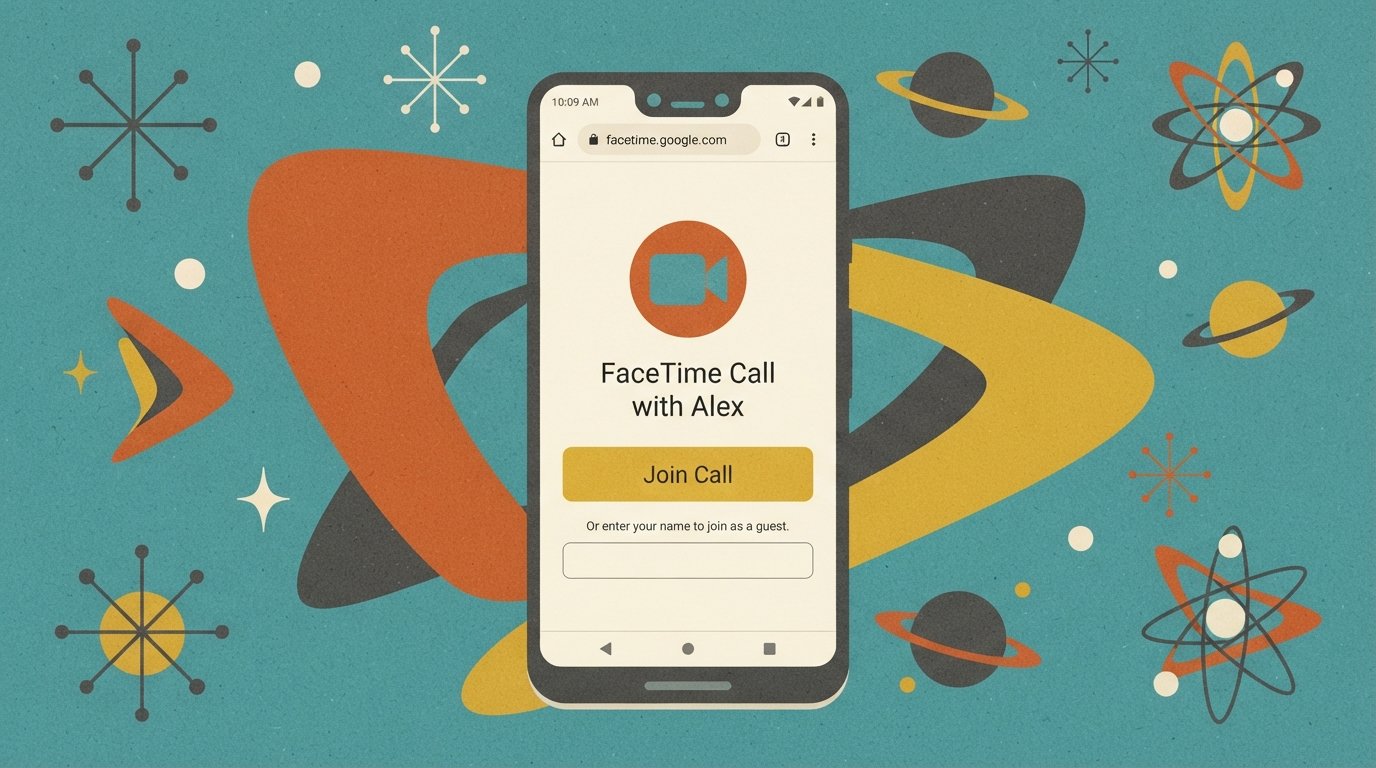
How to Use FaceTime on Android
FaceTime is not available as a standalone app on Android. However, Android users can join FaceTime calls through a web browser link created by an Apple user. The fastest method: the iPhone user creates a FaceTime link, sends it to you, and you open it in Google Chrome or Microsoft Edge, enter your name, and tap Join.
Quick Facts
| Item | Details |
|---|---|
| Problem | Using FaceTime on an Android phone |
| Affected Devices | All Android phones, including Samsung Galaxy, Google Pixel, Xiaomi, Motorola, and others |
| Most Common Cause | FaceTime is an Apple-exclusive app and is not available on the Google Play Store |
| Fastest Fix | Join a FaceTime call via a web link created by an Apple user |
| Time Needed | 2–5 minutes |
| Difficulty | Easy |
| Data Loss Risk | None |
| Tested On / Updated For | Android 15 & 16 · iOS 26.5.1 · October 2026 |
[AD SLOT]
Can You Use FaceTime on Android?
You cannot download the FaceTime app on Android, but you can join FaceTime calls using a web browser. Apple opened FaceTime to non-Apple devices in 2021 with iOS 15 and macOS Monterey. This feature allows anyone with a link to join a FaceTime call from Chrome or Edge on Android, Windows, or Linux.
Here is what Android users can and cannot do:
| Feature | Android Support |
|---|---|
| Download FaceTime app | ❌ Not available |
| Start a FaceTime call | ❌ Not possible |
| Join a FaceTime call via link | ✅ Supported |
| Use FaceTime audio and video | ✅ Supported |
| Screen sharing in FaceTime | ❌ Not available |
| SharePlay in FaceTime | ❌ Not available |
| No Apple Account required | ✅ Yes |
The key limitation is that an Apple user must start the call and send you a link. Android users cannot initiate a FaceTime call on their own.
How to Join a FaceTime Call on Android (Step-by-Step)
The process has two parts: the iPhone user creates a link, and the Android user joins it. Here is exactly how it works.
Part 1: The iPhone User Creates a FaceTime Link
The Apple user must be running iOS 15 or later on iPhone, iPadOS 15 or later on iPad, or macOS 12 Monterey or later on Mac.
Open the FaceTime app on the iPhone, iPad, or Mac.
Tap the “New Call” button at the bottom of the screen.
Tap the green “Create Link” button in the lower-left corner.
Tap “Add Name” to give the link a name, such as “Family Call” or “Team Meeting.”
Choose how to share the link — via Messages, WhatsApp, Email, AirDrop, or copy and paste it into any app.
Send the link to the Android user.
The link looks like a web address starting with facetime.apple.com/join/. The Apple user remains in the FaceTime app and waits for the Android user to join.
Part 2: The Android User Joins the Call
Tap the FaceTime link you received. It will open in your default web browser.
Use Google Chrome or Microsoft Edge for the best experience. Other Chromium-based browsers may work, but Apple recommends Chrome or Edge.
Enter your name in the field provided, then tap Continue.
Allow microphone and camera access when your browser asks. FaceTime needs both to work.
Tap the “Join” button.
Wait for the host to let you in. The Apple user will see a prompt to accept or decline your entry, similar to a Zoom meeting.
Once admitted, you are in the FaceTime call. You can mute your mic, turn your camera on or off, flip the camera, and use full-screen mode.
What You Can Do in a FaceTime Call on Android
When you join a FaceTime call through a web browser on Android, you have access to most standard call features:
Mute or unmute your microphone — use the Microphone button.
Turn your camera on or off — use the Camera button.
Use full-screen mode — if the Full Screen button appears.
Switch between front and rear cameras — use the Flip Camera button.
View participants in a grid layout — tap the Grid Layout button in the settings menu.
Share the link with someone else — tap the More button, then choose Copy Link or Share Link.
Not available on Android: Screen sharing and SharePlay do not work in FaceTime on the web.
Requirements for Joining FaceTime on Android
You need three things to join a FaceTime call from an Android phone. Make sure you have all of these before you try.
A stable Wi-Fi or cellular data connection. A weak signal will cause dropped calls or poor video quality.
The latest version of Google Chrome or Microsoft Edge. Update your browser from the Google Play Store if needed.
A FaceTime link from an Apple user. You cannot create the link yourself.
You do not need an Apple Account, an iPhone, or any special app to join a FaceTime call on Android.
Comparison Table: FaceTime Web vs. Native FaceTime
| Feature | FaceTime on Android (Web) | FaceTime on iPhone (App) |
|---|---|---|
| Start a call | ❌ No | ✅ Yes |
| Join a call | ✅ Yes (via link) | ✅ Yes |
| Audio calls | ✅ Yes | ✅ Yes |
| Video calls | ✅ Yes | ✅ Yes |
| Screen sharing | ❌ No | ✅ Yes |
| SharePlay | ❌ No | ✅ Yes |
| Grid view | ✅ Yes | ✅ Yes |
| Flip camera | ✅ Yes | ✅ Yes |
| Mute/unmute | ✅ Yes | ✅ Yes |
| Apple Account required | ❌ No | ✅ Yes (for setup) |
[AD SLOT]
Best FaceTime Alternatives for Android
If you want to start video calls from your Android phone, you need a cross-platform app. These apps work on both Android and iPhone and let you initiate calls, not just join them.
Google Meet (Best Overall)
Google Meet is the closest Android equivalent to FaceTime. It comes pre-installed on many Android phones and works on iPhone, Android, and the web. You can start one-on-one or group video calls without needing the other person to have a specific device.
Download: Google Play Store (Android) or App Store (iPhone)
Best for: Everyday video calls, group calls, screen sharing
Key features: Up to 100 participants, screen sharing, captions, background blur
WhatsApp (Most Widely Installed)
WhatsApp is the most popular messaging app worldwide and supports video calls on Android and iPhone. If your contacts already use WhatsApp, this is the easiest alternative because no one needs to install anything new.
Download: Google Play Store (Android) or App Store (iPhone)
Best for: Calling contacts who already use WhatsApp
Key features: End-to-end encryption, group video calls (up to 8 people), works on weak networks
Telegram (Best for Large Groups)
Telegram supports video calls and group video calls on Android and iPhone. It is a good choice if you need larger group calls or value privacy features.
Download: Google Play Store (Android) or App Store (iPhone)
Best for: Large group calls, privacy-focused users
Key features: End-to-end encryption in calls, large group support, cloud-based
Zoom (Best for Professional Calls)
Zoom is a reliable option for both personal and professional video calls on Android. It works on Android, iPhone, Windows, Mac, and the web.
Download: Google Play Store (Android) or App Store (iPhone)
Best for: Work meetings, webinars, large calls
Key features: Up to 100 participants (free), screen sharing, recording, virtual backgrounds
Signal (Best for Privacy)
Signal is a privacy-focused messaging app with video calling on Android and iPhone. It uses end-to-end encryption for all communications.
Download: Google Play Store (Android) or App Store (iPhone)
Best for: Privacy-conscious users
Key features: End-to-end encryption, disappearing messages, no ads or tracking
Comparison Table: FaceTime Alternatives for Android
| App | Platform Support | Max Group Size (Free) | Screen Sharing | Best For |
|---|---|---|---|---|
| Google Meet | Android, iOS, Web | 100 | ✅ Yes | All-around use |
| Android, iOS, Web | 8 | ❌ No | Contacts already on WhatsApp | |
| Telegram | Android, iOS, Web | Large groups | ✅ Yes (desktop) | Large groups, privacy |
| Zoom | Android, iOS, Web | 100 | ✅ Yes | Work and professional calls |
| Signal | Android, iOS, Desktop | 40 | ❌ No | Maximum privacy |
Common Problems and Fixes
FaceTime Link Won’t Open on Android
If the link does not open, your browser may be outdated or the link may be broken.
Update Google Chrome or Microsoft Edge from the Google Play Store.
Copy the link and paste it directly into the browser’s address bar.
Ask the Apple user to create a new link. FaceTime links can expire.
Try a different browser. While Apple recommends Chrome or Edge, other Chromium-based browsers may work.
Camera or Microphone Not Working During FaceTime
Browser permissions are the most common cause. FaceTime on the web needs access to your camera and microphone.
When the browser asks for permission, tap Allow.
If you accidentally denied permission, open your browser settings.
In Chrome, go to Settings > Site Settings > Camera and Microphone. Find the FaceTime site and change the permission to Allow.
Reload the page and try joining again.
FaceTime Call Keeps Dropping on Android
A weak internet connection is usually the cause.
Switch from cellular data to Wi-Fi if possible.
Move closer to your router.
Close other apps that use bandwidth, like streaming or downloads.
Ask the Apple user if their connection is stable.
Decision Tree
If you want to join a FaceTime call:
Ask the iPhone user to create a FaceTime link and send it to you. Go to Part 2 above.
If you want to start a video call from Android:
Use Google Meet, WhatsApp, Telegram, or Zoom. Go to the alternatives section.
If the link won’t open:
Go to “FaceTime Link Won’t Open on Android” above.
If camera or mic isn’t working:
Go to “Camera or Microphone Not Working” above.
Common Mistakes
Thinking FaceTime is available on the Google Play Store. It is not. There is no Android app for FaceTime.
Trying to start a FaceTime call from Android. Only Apple users can initiate FaceTime calls.
Using an outdated browser. FaceTime web requires the latest Chrome or Edge.
Denying camera or microphone permissions. The call will not work without them.
Expecting screen sharing or SharePlay. These features do not work in FaceTime on the web.
Ignoring alternatives. Google Meet, WhatsApp, and Zoom are often easier for cross-platform calls.
Key Takeaways
FaceTime is not available as an app on Android. There is no FaceTime app in the Google Play Store.
Android users can join FaceTime calls using a web link created by an Apple user.
You need Google Chrome or Microsoft Edge and a stable internet connection to join.
The Apple user must create the link and send it to you. Android users cannot start a FaceTime call.
Screen sharing and SharePlay do not work in FaceTime on the web.
Google Meet, WhatsApp, Telegram, Zoom, and Signal are the best cross-platform alternatives.
No Apple Account is needed to join a FaceTime call on Android.
FaceTime web links are not supported in China mainland.
Official Resources
Apple Support: “Join a FaceTime call from an Android or Windows device” — search on support.apple.com
Apple Support: “Create a link to a FaceTime call” — support.apple.com
Google Support: “Google Meet” — support.google.com
WhatsApp Help Center: “How to make a video call” — faq.whatsapp.com
Telegram FAQ: “Video Calls” — telegram.org/faq
Zoom Support: “Getting started on Android” — support.zoom.us