
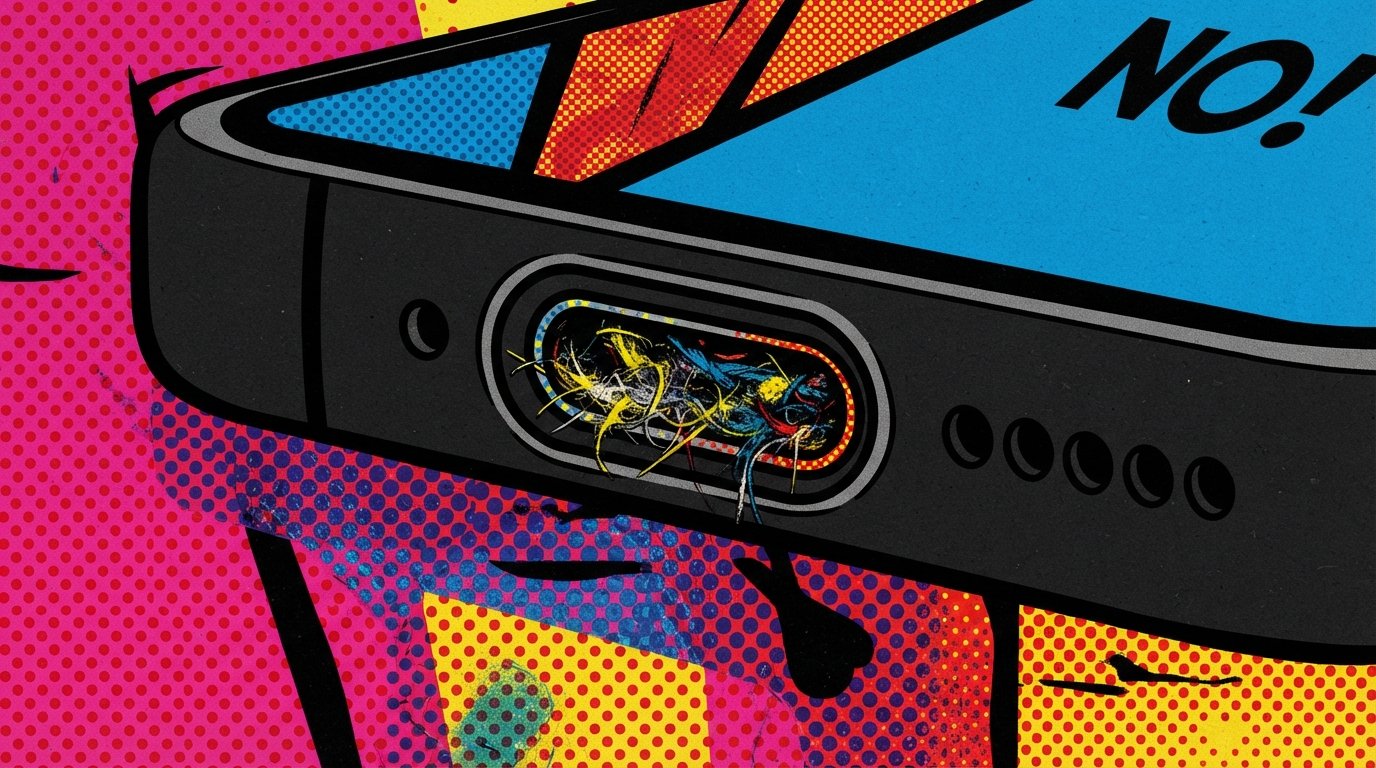
iPhone 16 Not Charging When Plugged In? Here’s How to Fix It
The most common cause is debris packed into the USB-C port that prevents the cable from seating fully. Power off the iPhone, inspect the port with a flashlight, and gently remove lint or dust with a wooden toothpick. Then plug in a known-good USB-C cable and charger and wait 10 minutes.
| Item | Details |
|---|---|
| Problem | iPhone 16 not charging when plugged in via USB-C |
| Affected Devices | iPhone 16, 16 Plus, 16 Pro, 16 Pro Max, 16e |
| Most Common Cause | Debris in the USB-C charging port blocking the cable connection |
| Fastest Fix | Clean the port, then try a different certified USB-C cable and wall adapter |
| Time Needed | 5–15 minutes |
| Difficulty | Easy |
| Data Loss Risk | None for cleaning, cable swaps, or force restart |
| Tested On / Updated For | iOS 26, October 2025 |
[AD SLOT]
What Causes iPhone 16 Charging Problems
The iPhone 16 uses a USB-C port, and the most frequent reason it stops charging is physical blockage inside that port. Pocket lint, dust, and fabric fibers pack into the bottom of the connector over time and stop the cable from making full contact with the charging pins. Apple’s own support documentation lists debris in the charging port as a primary cause of charging failure.
The second most common cause is a faulty or incompatible charging accessory. The iPhone 16 requires a USB-C cable and a power adapter that supports USB Power Delivery (USB-PD). Cheap cables from convenience stores or gas stations often fail to deliver enough power, and some may damage the port over time.
Software issues can also interrupt charging. Several iPhone 16 users reported charging failures after specific iOS updates, where the phone would not charge via USB-C but wireless charging still worked. A force restart or iOS update usually resolves these cases.
Less common causes include extreme heat, liquid detection alerts, and genuine hardware damage to the port or charging circuitry.
Quick Fixes to Try First
Try these in order. Stop as soon as charging works.
Fix 1: Clean the USB-C Port
This fixes the problem in most cases. Lint compacts at the bottom of the port and you often cannot see it without a light.
Power off your iPhone completely.
Shine a flashlight into the USB-C port at the bottom of the phone.
Look for lint, dust, or a white/gray packed layer at the back of the port.
Insert a wooden toothpick at a shallow angle and gently scrape debris outward. Do not push toward the back of the port.
Blow out loose dust with short bursts of air. Avoid compressed air cans, which can push debris deeper or spray liquid.
Plug in the cable and check if charging starts.
If the cable now clicks in more firmly than before, debris was the problem.
Fix 2: Try a Different Cable and Charger
Unplug your current cable.
Use a different USB-C cable that you know works with another device.
Plug it into a different wall adapter, ideally one rated 20W or higher with USB-PD support.
Plug the adapter directly into a wall outlet, not a computer USB port, hub, or car adapter.
Wait 10 minutes and check the screen.
Apple recommends charging for at least 10 minutes before assuming the phone is not responding, because a deeply discharged iPhone may not show any screen activity immediately.
Fix 3: Force Restart Your iPhone 16
A force restart clears temporary software glitches that can block charging.
Press and quickly release the Volume Up button.
Press and quickly release the Volume Down button.
Press and hold the Side button until the Apple logo appears.
Release the button and let the phone restart.
Plug in the charger again.
This step is especially useful if the charging issue started right after an iOS update.
Fix 4: Check for Heat and Remove the Case
Feel the back of the iPhone. If it is warm or hot, stop charging.
Remove the case.
Move the phone to a cooler area away from direct sunlight.
Let it cool for 10–15 minutes.
Plug in again.
iOS limits or stops charging when the battery gets too warm. This is a safety feature, not a fault.
[AD SLOT]
Decision Tree: Which Fix Should You Try?
Cable feels loose or does not click in? → Go to Fix 1 (clean the port).
Cable fits snugly but no charging icon appears? → Go to Fix 2 (try different cable and charger).
Charging started failing after an iOS update? → Go to Fix 3 (force restart), then check for a newer iOS version.
Phone feels hot? → Go to Fix 4 (cool down).
Nothing works and wireless charging still works? → The USB-C port likely needs professional inspection. See the hardware section below.
Fixes If You Updated iOS Recently
Charging problems after an iOS update are usually temporary. Apple has addressed USB-C charging bugs in follow-up releases.
Open Settings > General > Software Update.
If an update is available, install it.
Open the App Store and update all apps.
Force restart the iPhone (Volume Up, Volume Down, hold Side button).
Test charging again.
If the problem persists after the latest iOS version, back up your iPhone and consider a clean restore using Finder (Mac) or Apple Devices (Windows). This reinstalls iOS and can fix corrupted charging services.
Check Charging Settings and Battery Health
Your iPhone 16 may be charging but stopping at a set limit. This is not a fault.
Open Settings > Battery.
Tap Charging.
Check the Charge Limit setting. If it is set to 80%, 85%, 90%, or 95%, the phone will stop charging at that level.
If you want a full charge, change the limit to 100%.
Tap Battery Health to see maximum capacity.
The iPhone 16 series introduced a Charge Limit feature that caps charging to extend battery lifespan. When enabled, your iPhone charges to within a few percentage points of the limit and then stops. If the level drops more than 5%, charging resumes automatically.
If Battery Health shows significantly reduced capacity (below 80%), the battery itself may be the problem.
When It’s a Hardware Problem
If you have cleaned the port, tried multiple certified cables and chargers, force restarted, and updated iOS, the issue is likely hardware. Warning signs of hardware failure include:
The cable wiggles loosely no matter how firmly you push it in.
Visible damage, corrosion, or bent pins inside the port.
The phone charges wirelessly but never via USB-C.
A liquid detection warning that does not clear after drying.
Apple recommends replacing the USB-C connector assembly if the port is damaged on iPhone 16 models. This is a repair that requires opening the phone. Do not attempt it yourself unless you have experience with iPhone repairs and the correct tools.
Repair options include:
Apple Store or Apple Authorized Service Provider: Uses genuine Apple parts. Pricing varies.
Independent repair shop: May be faster and cheaper, but confirm they use quality parts.
Apple Self Service Repair: Apple sells genuine parts and tools for out-of-warranty repairs if you are comfortable doing the work yourself.
How to Avoid Losing Data
Before any repair, reset, or restore:
Open Settings > [Your Name] > iCloud > iCloud Backup and tap Back Up Now.
Or connect to a computer and back up using Finder (Mac) or Apple Devices (Windows).
Confirm the backup completed before handing your phone to anyone.
A port cleaning, cable swap, force restart, or settings reset does not delete data. A factory reset or restore does. Always back up first.
Common Mistakes to Avoid
Using a metal pin or paperclip to clean the port. Metal can scratch the charging pins and cause permanent damage. Use a wooden toothpick or plastic tool only.
Spraying compressed air directly into the port. This can push debris deeper or release propellant liquid. Use short bursts from a distance or a soft brush.
Buying uncertified cheap cables. They may not deliver enough power and can damage the port over time.
Assuming the phone is broken when it stops at 80%. Check the Charge Limit setting first.
Ignoring a liquid detection alert. If the phone warns about liquid in the port, let it dry completely before plugging in anything.
Comparison Table: Fixes at a Glance
| Fix | Works For | Time | Data Loss Risk |
|---|---|---|---|
| Clean USB-C port | Debris blocking connection | 5 min | None |
| Try different cable/charger | Faulty accessories | 5 min | None |
| Force restart | Software glitches | 1 min | None |
| Cool down the phone | Heat-related charging stop | 15 min | None |
| Update iOS | Post-update charging bugs | 15–30 min | None |
| Change Charge Limit | Phone stopping at 80% | 1 min | None |
| Reset All Settings | Corrupted system settings | 5 min | None (settings only) |
| Restore via computer | Persistent software failure | 30–60 min | Yes (restore from backup) |
| USB-C port replacement | Hardware damage | 1–2 hours | Yes (back up first) |
[AD SLOT]
Common Questions
Why is my iPhone 16 not charging when I plug it in?
The most likely cause is lint or debris inside the USB-C port. Power off the phone, shine a light into the port, and gently remove any debris with a wooden toothpick. Then try a different certified USB-C cable and wall adapter. This resolves most charging failures.
Why does my iPhone 16 charge wirelessly but not with a cable?
If wireless charging works but USB-C does not, the port itself is likely damaged or blocked. Clean the port first. If cleaning does not help, the USB-C connector assembly may need replacement. Apple recommends servicing the port for iPhone 16 models.
Does the iPhone 16 need a special charger?
The iPhone 16 uses USB-C and works with any USB-PD compliant charger. For fast charging, use a 20W or higher USB-C power adapter. Cheap cables that do not support USB-PD may charge slowly or not at all.
Why did my iPhone 16 stop charging after an update?
iOS updates occasionally introduce charging bugs that affect the USB-C port. Force restart the phone, check for a newer iOS version, and update all apps. If the problem persists, back up and restore the iPhone.
My iPhone 16 says “Charging on Hold” — what does that mean?
“Charging on Hold” usually appears when the battery is too warm. iOS pauses charging until the temperature drops. Remove the case, move the phone to a cooler area, and wait. Charging resumes automatically.
Is it safe to use a non-Apple USB-C cable with the iPhone 16?
Yes, if the cable is certified and supports USB-PD. Avoid uncertified cheap cables, which may not deliver enough power and can potentially damage the port over time.
How do I know if my iPhone 16 charging port is damaged?
Signs include a cable that fits loosely, visible bent or corroded pins, charging only when you wiggle the cable, and charging working wirelessly but not via USB-C. If cleaning does not fix it, the port likely needs professional repair.
Will cleaning the charging port void my warranty?
No. Cleaning debris from the port with a non-metallic tool does not void your warranty. However, causing damage with a metal pin or liquid could be considered accidental damage.
Can I use my old Lightning cable with the iPhone 16?
No. The iPhone 16 uses USB-C. Lightning cables from iPhone 14 and earlier models will not fit. You need a USB-C to USB-C cable.
Should I turn off Optimized Battery Charging?
Only temporarily for testing. Optimized Battery Charging slows battery aging by delaying the final 20% of charge. Turning it off permanently can increase battery wear. If you need a full charge immediately, touch and hold the charging notification and tap “Charge Now”.
Key Takeaways
The most common cause of iPhone 16 charging failure is lint or debris in the USB-C port. Clean it with a wooden toothpick.
Try a different certified USB-C cable and a wall adapter rated 20W or higher before assuming the phone is broken.
A force restart (Volume Up, Volume Down, hold Side button) clears many software-related charging glitches.
Check Settings > Battery > Charging to see if a Charge Limit is stopping charging at 80%.
Heat can pause charging. Remove the case and let the phone cool down.
If wireless charging works but USB-C does not, the port likely needs professional inspection.
Always back up your iPhone before any reset, restore, or repair.
Avoid metal tools and compressed air when cleaning the port.
Official Resources
Apple Support: “If your iPhone or iPod touch won’t charge” — search support.apple.com for this exact title.
Apple Support: “iPhone Troubleshooting Battery, Charging, and Power Issues” — guided steps on support.apple.com.
Apple Support: “About Charge Limit and Optimised Battery Charging on iPhone” — support.apple.com.
Apple Repair: Visit support.apple.com/repair to start a service request.