
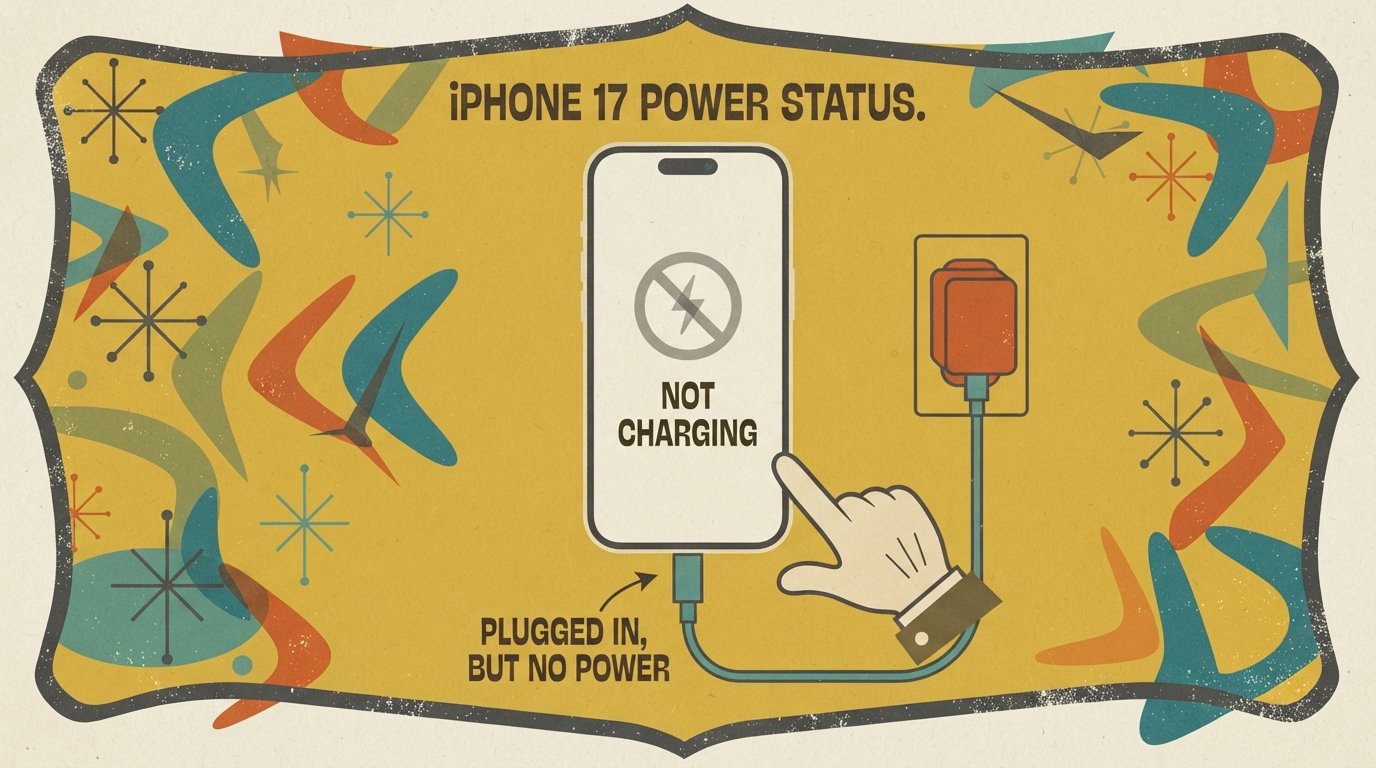
iPhone 17 Not Charging When Plugged In? 7 Fixes That Work
The most common cause on iPhone 17 is a software bug that prevented wired charging when the battery was nearly drained. Apple fixed this in iOS 26.5.1, released June 1, 2026. If your iPhone 17 is fully dead and won’t respond to a cable, place it on a MagSafe wireless charger for 10–15 minutes first, then update to iOS 26.5.1 or later.
Quick Facts
| Item | Details |
|---|---|
| Problem | iPhone 17 does not charge when a USB-C cable is plugged in |
| Affected Devices | iPhone 17, iPhone 17 Pro, iPhone 17 Pro Max, iPhone 17e, iPhone Air |
| Most Common Cause | A software bug (fixed in iOS 26.5.1) that blocked wired charging when the battery was nearly drained |
| Fastest Fix | Update to iOS 26.5.1 or later. If the phone is dead, use a MagSafe charger for 10–15 minutes first. |
| Time Needed | 2 minutes (settings check) to 30 minutes (update install) |
| Difficulty | Easy |
| Data Loss Risk | None for software updates or troubleshooting. A logic board repair involves data loss if no backup exists. |
| Tested On / Updated For | iOS 26.5.1 and later, October 2026 |
[AD SLOT]
What Causes an iPhone 17 to Stop Charging?
Your iPhone 17 may not charge for one of six reasons. The most common by far is a software bug that Apple has already fixed.
The iOS 26.5.1 charging bug. Apple confirmed that a software issue prevented wired charging on iPhone Air and all iPhone 17 models when the battery was nearly drained. The bug caused the system to fail to recognize the charging cable at critically low battery levels. Some users found their phones completely discharged after being left plugged in overnight. Apple released iOS 26.5.1 on June 1, 2026, to fix it.
Debris in the USB-C port. Lint, dust, and pocket debris block the cable from making full contact. This is one of the most common physical causes of charging failure on any iPhone.
A faulty cable or adapter. Not all USB-C cables are created equal. A worn cable or a low-wattage adapter may not deliver enough power to charge an iPhone 17 reliably. For fast charging, iPhone 17, iPhone 17 Pro, and iPhone 17 Pro Max require a 40W or higher adapter.
Overheating. iOS limits or stops charging when the battery gets too warm. This protects the battery from damage.
A software glitch unrelated to the charging bug. Force restarting the iPhone clears temporary processes that can interfere with charging detection.
A hardware fault. A damaged USB-C port, a failing battery, or a logic board issue can prevent charging. Apple’s service documentation notes that for iPhone 17 models, if troubleshooting steps fail, the logic board may need replacement.
Quick note: If your iPhone 17 is completely dead and won’t respond to a wired charger, this is a known symptom of the iOS 26.5.1 bug. The workaround is to use a MagSafe wireless charger to give the phone enough power to boot, then update iOS immediately.
Quick Fixes (Try These First)
These are ordered from easiest to hardest. Stop as soon as your iPhone charges normally.
Fix 1: Update to iOS 26.5.1 or Later
This is the official fix for the known iPhone 17 charging bug. Apple released iOS 26.5.1 specifically to address wired charging failures on iPhone 17 models when the battery is nearly drained. Install it as soon as possible.
Steps:
Open Settings > General > Software Update.
Tap Download and Install if iOS 26.5.1 or later is available.
Keep your iPhone plugged into power and connected to Wi-Fi during the update.
Wait for the update to install. The iPhone will restart automatically.
After the update, plug in your USB-C cable and check if charging works.
If your iPhone 17 is completely dead and won’t turn on: Use a MagSafe charger first (see Fix 2), then update iOS as soon as the phone boots.
Fix 2: Use a MagSafe Charger to Revive a Dead iPhone 17
If your iPhone 17 is fully discharged and won’t respond to a wired cable, a MagSafe wireless charger can provide enough power to boot the device. This is the most widely reported workaround for the iOS 26.5.1 bug.
Steps:
Place your iPhone 17 on a MagSafe charging dock or a Qi-compatible wireless charger.
Make sure the charger is plugged into a wall outlet, not a computer USB port.
Leave the iPhone on the charger for 10–15 minutes without touching it.
The screen should eventually show the charging icon or the Apple logo.
Once the iPhone boots, immediately go to Settings > General > Software Update and install iOS 26.5.1.
After updating, test wired charging with a USB-C cable.
Some users found that using a 20W or higher USB-C power adapter to power the MagSafe charging stand worked better than relying on a computer’s USB port.
Fix 3: Try a Different USB-C Cable and Adapter
A faulty or underpowered cable can cause charging to fail. iPhone 17 models support USB Power Delivery fast charging and work best with certified cables and adequate wattage.
Steps:
Unplug your current cable and adapter.
Try a different USB-C cable that supports data transfer and charging (not a charge-only cable).
Use a 40W or higher USB-C power adapter for iPhone 17, iPhone 17 Pro, and iPhone 17 Pro Max.
Plug the adapter into a different wall outlet.
Check if the iPhone starts charging.
If a different cable works, the original cable was the problem. Replace it with a certified USB-C cable.
Fixes for Hardware and Port Issues
If the software update and cable swap don’t help, the problem may be physical.
Fix 4: Clean the USB-C Charging Port
Debris in the USB-C port is one of the most common physical causes of charging failure. Apple’s official troubleshooting guide recommends cleaning the connector with a small, non-metallic, soft-bristled brush.
Steps:
Turn off your iPhone and unplug all cables.
Use a flashlight to look inside the USB-C port. Look for lint, dust, or debris.
Use a small, soft-bristled brush (like a clean toothbrush) to gently loosen debris.
Twist the bristles to lift debris out. Brush debris away from the connector, not into it.
Do not use compressed air, metal objects, or liquids.
Plug the cable back in and check charging.
Fix 5: Cool Down Your iPhone
Overheating can pause or stop charging. This is a safety feature, not a bug.
Steps:
Unplug your iPhone and remove its case.
Move it to a cooler location — away from direct sunlight, heaters, or warm surfaces.
Wait 10–15 minutes for the iPhone to cool down.
Plug it back in and check if charging resumes.
Avoid charging your iPhone in hot cars, on direct sunlight, or under pillows.
Fix 6: Force Restart Your iPhone
A force restart clears temporary software glitches that can interfere with charging detection. This does not delete any data.
Steps for iPhone 17 (and all iPhone 8 and later):
Press and quickly release the Volume Up button.
Press and quickly release the Volume Down button.
Press and hold the Side button until the Apple logo appears.
Release and wait for the iPhone to restart.
Plug in the charger and check if charging works.
Fix 7: Check Battery Health and Charging Settings
If your iPhone 17 is still not charging after all the steps above, check your battery health and charging settings. This can tell you whether the battery itself is degrading.
Steps:
Open Settings > Battery.
Tap Battery Health & Charging.
Look at Maximum Capacity. If it is below 80%, Apple considers the battery degraded and recommends service.
Tap Charging and check the Charge Limit setting. If it is set to 80%, your iPhone will stop charging at that level by design.
If you want a full charge, change the limit to 100% or tap Allow Until Tomorrow.
Comparison Table: Which Fix Should You Try?
| Fix | Works For | Time | Data Loss Risk |
|---|---|---|---|
| Update to iOS 26.5.1 | Known charging bug on iPhone 17 | 10–20 min | None |
| MagSafe charger | Fully dead iPhone 17 that won’t respond to cable | 15 min | None |
| Different cable and adapter | Faulty or underpowered accessories | 2 min | None |
| Clean USB-C port | Debris blocking connection | 5 min | None |
| Cool down iPhone | Heat-related charging pause | 15 min | None |
| Force restart | Software glitch in charging detection | 1 min | None |
| Check battery health | Degraded battery or charge limit setting | 2 min | None |
Decision Tree: What to Do Next
iPhone 17 is completely dead and won’t respond to a cable? → Go to Fix 2 (MagSafe charger), then update iOS.
iPhone 17 turns on but won’t charge past 0% or 1%? → Go to Fix 1 (update iOS 26.5.1).
Charging is intermittent or cuts in and out? → Go to Fix 4 (clean the port) then Fix 3 (try a different cable).
iPhone feels warm while charging? → Go to Fix 5 (cool it down).
Nothing works after all fixes? → Go to Fix 7 (check battery health). You may need service.
[AD SLOT]
How to Back Up Before Any Repair
If you need to take your iPhone 17 to Apple Support or an authorized repair center, back up your data first. Apple recommends backing up before any service appointment.
iCloud backup:
Open Settings > [Your Name] > iCloud > iCloud Backup.
Make sure Back Up This iPhone is turned on.
Tap Back Up Now.
Keep your iPhone connected to Wi-Fi and a charger during this process.
Computer backup:
Connect your iPhone to a Mac or PC.
On a Mac with macOS Catalina or later, open Finder. On a Windows PC, open the Apple Devices app or iTunes.
Select your device, then click Back Up Now.
If your iPhone 17 won’t turn on, you may not be able to back up. In that case, use a MagSafe charger to boot the phone first (Fix 2), then back up immediately.
Common Mistakes to Avoid
Assuming the phone is broken. The iPhone 17 charging bug is a software issue that Apple has already fixed. Update iOS before paying for a repair.
Using a low-wattage adapter. iPhone 17, iPhone 17 Pro, and iPhone 17 Pro Max fast charging requires a 40W or higher adapter. A weak adapter may not charge the phone reliably.
Using compressed air in the charging port. Apple specifically warns against compressed air because it can push debris deeper into the port.
Using metal objects to clean the port. Metal can damage the delicate pins inside the USB-C connector. Use a soft-bristled brush only.
Charging in a hot environment. Heat is the biggest enemy of battery health and can pause charging.
Ignoring battery health warnings. If Settings shows “Service Recommended” or your maximum capacity is below 80%, replace the battery.
Not installing iOS 26.5.1. If you skip this update, the wired charging bug will continue to affect your iPhone 17 when the battery is nearly drained.
When It’s a Hardware Problem
If your iPhone 17 still won’t charge after all the fixes above, the issue may be hardware-related. Apple’s service documentation lists the following parts to check for iPhone 17 wired charging issues:
USB-C connector assembly. For iPhone 17e, a damaged USB-C port may need replacement.
Logic board. For all iPhone 17 models and iPhone Air, if troubleshooting steps fail, the logic board may need replacement.
Signs of a hardware problem include:
Charging only works with the cable held at a specific angle.
The USB-C port is visibly damaged, loose, or bent.
The iPhone gets unusually hot during charging even in a cool environment.
Maximum battery capacity is below 80%.
Settings shows a “Service Recommended” message.
What repair involves:
USB-C port replacement: Apple charges around $99–$149 depending on the model.
Logic board repair: $200–$400+ depending on the model and whether you have AppleCare+.
Battery replacement: $49–$99 if the battery is the issue.
If your iPhone 17 is under warranty or covered by AppleCare+, contact Apple Support first. Use the Apple Support app or visit getsupport.apple.com to chat with an advisor or book a Genius Bar appointment.
How to Prevent This from Happening Again
Keep iOS updated. Settings > General > Software Update. Apple’s iOS 26.5.1 update specifically fixed the iPhone 17 charging bug. Future updates may include similar fixes.
Use Apple-certified cables and adequate adapters. For fast charging on iPhone 17, iPhone 17 Pro, and iPhone 17 Pro Max, use a 40W or higher USB-C power adapter.
Clean the USB-C port every few months. Check for lint and debris, especially if you carry your iPhone in a pocket.
Avoid charging in extreme temperatures. Charge your iPhone in a cool, ventilated area. Remove thick cases during fast charging.
Monitor battery health. Check Settings > Battery > Battery Health & Charging every few months. If maximum capacity drops below 80%, consider a replacement.
Keep a MagSafe charger as a backup. If you ever encounter the charging bug again, a MagSafe charger can revive a fully dead iPhone 17.
Common Questions
Why is my iPhone 17 not charging when plugged in?
The most common cause is a software bug that Apple fixed in iOS 26.5.1. It prevented wired charging when the battery was nearly drained. Update to iOS 26.5.1 or later. If your iPhone is completely dead and won’t respond to a cable, use a MagSafe charger for 10–15 minutes first.
How do I fix an iPhone 17 that won’t charge?
Update to iOS 26.5.1 first: Settings > General > Software Update. If the phone is dead, use a MagSafe charger to revive it. Then try a different USB-C cable and a 40W or higher adapter. Clean the charging port with a soft brush. If nothing works, contact Apple Support.
Why won’t my dead iPhone 17 charge with a cable?
This is a known symptom of the iOS 26.5.1 bug. When the battery is nearly drained, the system fails to recognize the charging cable. The workaround is to place the iPhone on a MagSafe wireless charger for 10–15 minutes to give it enough power to boot, then update iOS immediately.
Does the iPhone 17 charging bug affect all models?
Apple says the bug affected a small number of users. It applies to iPhone Air and all iPhone 17 models: iPhone 17, iPhone 17 Pro, iPhone 17 Pro Max, and iPhone 17e. Older iPhones are not affected.
What wattage adapter do I need for iPhone 17 fast charging?
For iPhone 17, iPhone 17 Pro, and iPhone 17 Pro Max, Apple recommends a 40W or higher USB-C power adapter for fast charging. You can reach 50% charge in about 20 minutes with a 40W adapter. For iPhone 17e and iPhone Air, a 20W or higher adapter is sufficient.
Will I lose data if I update to iOS 26.5.1?
No. Software updates do not delete your data. Your photos, messages, apps, and settings are preserved. However, always back up your iPhone before any update as a precaution.
How do I clean the USB-C port on my iPhone 17?
Turn off the iPhone, unplug all cables, and use a small, soft-bristled brush to gently loosen debris. Apple recommends brushing debris away from the connector, not into it. Do not use compressed air, metal objects, or liquids.
When should I take my iPhone 17 to Apple Support?
Contact Apple if: the iPhone still won’t charge after updating to iOS 26.5.1, trying a different cable and adapter, and cleaning the port. Also contact Apple if the charging port is visibly damaged, the iPhone gets unusually hot during charging, or battery health is below 80%.
Key Takeaways
Apple fixed a known iPhone 17 wired charging bug in iOS 26.5.1. Update immediately if you haven’t already.
If your iPhone 17 is completely dead and won’t respond to a cable, use a MagSafe charger for 10–15 minutes to revive it.
iPhone 17, iPhone 17 Pro, and iPhone 17 Pro Max fast charging requires a 40W or higher USB-C adapter.
Debris in the USB-C port is a common physical cause of charging failure. Clean it with a soft-bristled brush, not compressed air.
Overheating can pause charging. Move your iPhone to a cooler location.
A force restart clears temporary software glitches that affect charging detection.
If nothing works, the issue may be hardware-related. Apple may need to replace the USB-C port or logic board.
Keep a MagSafe charger as a backup — it can revive a dead iPhone 17 even when wired charging fails.
Official Resources
Apple Support — iOS 26.5.1 update: Visit support.apple.com and search for “iOS 26.5.1” or “update your iPhone.”
Apple Support — If your iPhone won’t charge: Visit support.apple.com and search for “iPhone won’t charge” or “iPhone charging issues.”
Apple Support — Battery and charging troubleshooting: Visit support.apple.com and search for “iPhone battery and charging troubleshooting.”
Apple Support — Contact: Use the Apple Support app or visit getsupport.apple.com to chat with an advisor or book a Genius Bar appointment.
Apple Authorized Service Providers: Visit locate.apple.com to find an authorized repair center near you.