
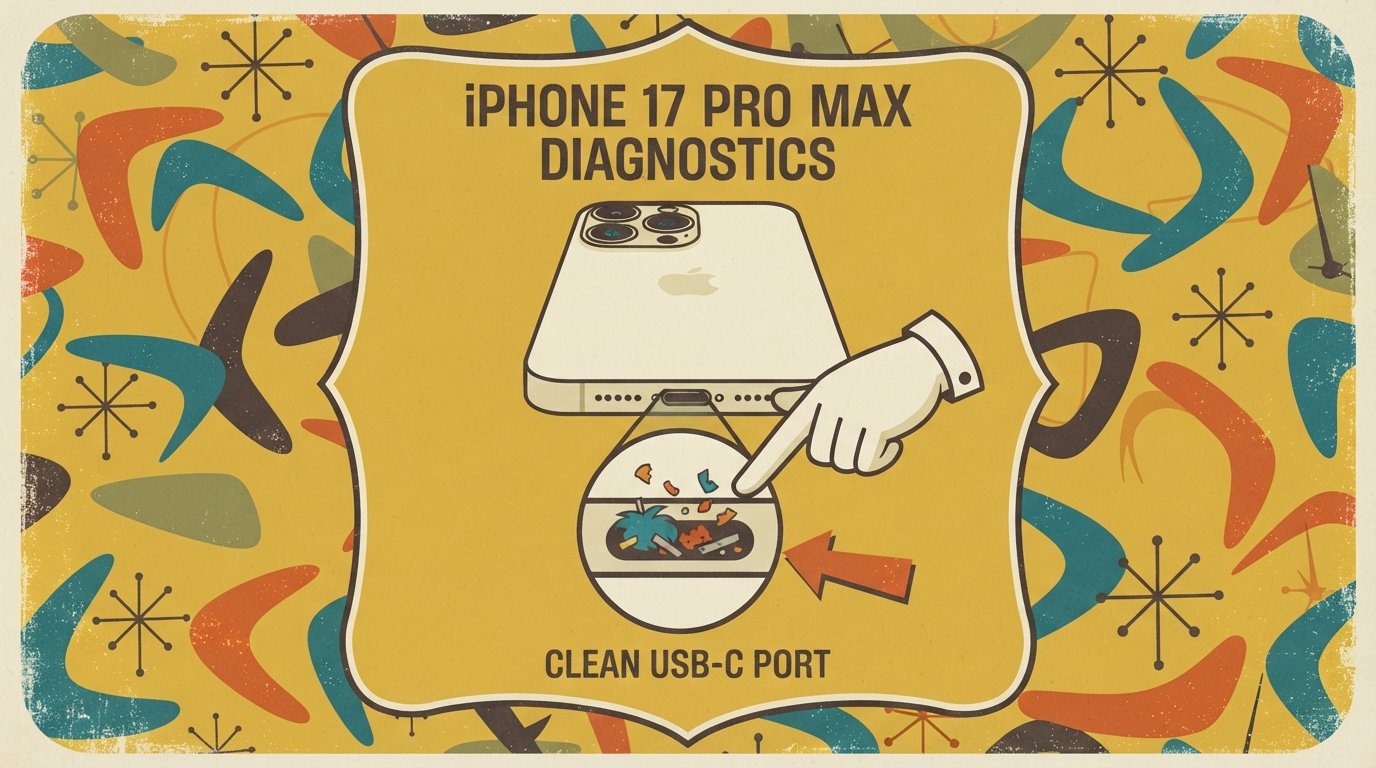
iPhone 17 Pro Max Not Charging: Causes and Fixes
If your iPhone 17 Pro Max won’t charge, the most common cause is debris in the USB-C port or a software bug that Apple fixed in iOS 26.5.1. The fastest fix: clean the charging port gently with a soft brush, then connect to a wall outlet with a certified USB-C cable and wait at least 10–30 minutes. If the screen stays black after a full battery drain, try a MagSafe wireless charger.
[AD SLOT]
Quick Facts
| Item | Details |
|---|---|
| Problem | iPhone 17 Pro Max not charging or not turning on after battery drain |
| Affected Devices | iPhone 17 Pro Max, iPhone 17 Pro, iPhone 17, iPhone Air |
| Most Common Cause | Debris in USB-C port, faulty cable/adapter, or a known software bug fixed in iOS 26.5.1 |
| Fastest Fix | Clean the USB-C port and charge with a certified cable and wall adapter for 30 minutes |
| Time Needed | 5–15 minutes for most fixes |
| Difficulty | Easy (no technical background needed) |
| Data Loss Risk | None for basic fixes; backup required before DFU restore |
| Tested On / Updated For | iOS 26.5.1 · October 2026 |
[AD SLOT]
What Causes iPhone 17 Pro Max Charging Problems?
Charging problems usually come from one of three places: the charging port, the cable or adapter, or the software. The iPhone 17 Pro Max uses a USB-C port, which collects lint and dust more easily than older Lightning ports.
A documented software bug also affected the iPhone 17 lineup. When the battery drained to near zero, wired charging would stop working, and the screen stayed black. Apple released iOS 26.5.1 to fix this. If your phone is not updated, that bug may be the cause.
Other common causes include:
Damaged or low-quality cable. A worn cable cannot deliver enough power.
Weak power adapter. Some adapters do not provide enough wattage for the iPhone 17 Pro Max.
Overheating. The phone slows or stops charging when it gets too hot.
Optimized Battery Charging. This feature delays charging past 80% on purpose.
Hardware damage. Bent pins, corrosion, or a failed charging IC.
Quick Fixes (Try These First)
Follow these steps in order. Most people fix the problem within the first three steps.
Fix 1: Clean the USB-C Port
Debris in the port is the most common physical cause.
Unplug all cables and turn off the iPhone.
Inspect the port with a flashlight. Look for lint, dust, or bent pins.
Use a clean, dry, soft-bristled brush (a new toothbrush works). Do not use compressed air.
Gently twist the bristles inside the port to loosen debris. Brush debris away from the connector.
Do not insert metal objects. A wooden toothpick can help dislodge stubborn lint, but use very light pressure.
Plug in a certified USB-C cable and wall adapter. Wait at least 10 minutes.
Apple recommends using a small, non-metallic, soft-bristled brush for this.
Fix 2: Try a Different Cable and Adapter
A bad cable is the second most common cause.
Use the cable that came with your iPhone or a certified USB-C cable.
Use a 20W or higher USB-C Power Delivery (PD) adapter. The iPhone 17 Pro Max can draw up to 40W, but 20W is enough for reliable charging.
Plug the adapter directly into a wall outlet. Do not use a computer USB port.
Try a different outlet in a different room.
Wait at least 30 minutes. A fully drained battery may need 20–30 minutes before the screen shows any sign of life.
Fix 3: Force Restart the iPhone
A frozen system can stop charging. A force restart does not erase data.
Press and quickly release the Volume Up button.
Press and quickly release the Volume Down button.
Press and hold the Side button until the Apple logo appears (about 10 seconds).
Release the button and wait. Then plug in the charger again.
Fix 4: Update to iOS 26.5.1 or Later
Apple fixed a charging bug for iPhone 17 models in iOS 26.5.1.
Connect to Wi-Fi.
Go to Settings > General > Software Update.
Tap Download and Install if an update is available.
Let the phone restart. Then test charging again.
This update specifically fixes the issue where wired charging stops working after a near-complete battery drain.
Fix 5: Try Wireless (MagSafe) Charging
If wired charging does not work, wireless charging can confirm whether the port is the problem.
Place the iPhone face-up on a MagSafe charger that is plugged into a wall outlet.
Wait 10–15 minutes. Many users with this issue got their phone to turn on only through MagSafe.
If wireless charging works but wired does not, the USB-C port is likely damaged. Go to Fix 7.
Fix 6: Turn Off Optimized Battery Charging
This feature can make it look like your phone is not charging past 80%.
Go to Settings > Battery > Charging.
Tap Optimized Battery Charging and turn it off temporarily.
Test charging again. If it charges normally, the feature was working as designed. Turn it back on afterward.
On iPhone 15 and newer models, the path is Settings > Battery > Charging.
Fix 7: Reset All Settings (Warning: Does Not Delete Data, But Resets Wi-Fi Passwords)
This can clear a software glitch that blocks charging.
Go to Settings > General > Transfer or Reset iPhone.
Tap Reset > Reset All Settings.
Enter your passcode.
Test charging.
This does not delete apps or photos, but it resets Wi-Fi passwords, wallpapers, and Bluetooth pairings.
Comparison Table: Which Fix to Try
| Fix | Works For | Time | Data Loss Risk |
|---|---|---|---|
| Clean USB-C port | Debris, lint, dust | 2 min | None |
| New cable/adapter | Bad cable, weak charger | 5 min | None |
| Force restart | Frozen system | 1 min | None |
| iOS update | Software bug | 10 min | None |
| MagSafe charging | Dead battery, port issue | 15 min | None |
| Reset all settings | Software glitch | 3 min | None (resets Wi-Fi) |
| DFU restore | Deep software corruption | 30 min | Yes — backup first |
| Port repair | Hardware damage | 1–2 hours | None |
Decision Tree
If the screen is completely black and the phone will not turn on:
Go to Fix 5 (MagSafe) first. If it turns on, go to Fix 1 (clean port).
If MagSafe does not work, go to Fix 3 (force restart) and then Fix 4 (update iOS).
If the phone turns on but does not charge past a certain percentage:
Go to Fix 6 (Optimized Battery Charging).
If the phone charges sometimes but not always:
Go to Fix 1 (clean port) and Fix 2 (new cable).
If nothing works after all fixes:
Go to Fix 7 (reset all settings) or the hardware section below.
Advanced Fix: DFU Mode Restore (Last Resort)
DFU (Device Firmware Update) mode reinstalls iOS and firmware. Use it only if every other fix fails.
Warning: This erases all data on your iPhone. Back up first.
Back up your iPhone to iCloud or a computer.
Connect the iPhone to a computer with a USB-C cable.
Quickly press Volume Up, then Volume Down.
Press and hold the Side button until the screen goes black.
While still holding Side, press and hold Volume Down for 5 seconds.
Release Side but keep holding Volume Down for 10 seconds.
Your computer should detect the iPhone in DFU mode. Follow the prompts in Finder or iTunes to restore.
When It’s a Hardware Problem
If cleaning the port, changing cables, updating iOS, and trying MagSafe all fail, the problem is likely hardware. Common hardware issues include:
Bent or corroded pins inside the USB-C port.
Liquid damage that corroded the charging contacts.
Failed charging IC on the logic board.
What repair involves: A repair shop will inspect the port with a microscope, clean corrosion, or replace the charging port flex cable. If the charging IC is damaged, microsoldering is required.
Typical cost: Charging port replacement ranges from $79 to $159 at third-party shops. Apple charges around $129**, or **$99 with AppleCare+.
How to Avoid Losing Data
Before any risky step, back up your iPhone:
iCloud backup: Go to Settings > [Your Name] > iCloud > iCloud Backup > Back Up Now.
Computer backup: Connect to a Mac or PC and use Finder or iTunes to back up.
Charging fixes like cleaning the port, force restart, and iOS update do not delete data. DFU restore and factory reset do.
Common Mistakes
Using compressed air in the port. This can push debris deeper or damage components.
Inserting metal objects. This can bend pins or cause a short.
Using cheap uncertified cables. They may not deliver enough power and can damage the port over time.
Ignoring software updates. The iOS 26.5.1 update fixed a known charging bug.
Panicking after a full drain. A deeply discharged iPhone can take 30 minutes to show any sign of charging.
[AD SLOT]
Common Questions
Why won’t my iPhone 17 Pro Max charge after the battery died?
A known software bug in early iOS 26 versions caused this. Apple fixed it in iOS 26.5.1. If your phone is updated, clean the USB-C port and try a MagSafe charger. Wait up to 30 minutes before assuming the phone is dead.
How do I clean the iPhone 17 Pro Max charging port?
Turn off the phone. Use a dry, soft-bristled brush to gently twist inside the port and lift out debris. Do not use compressed air or metal objects. Apple recommends a small, non-metallic brush for this.
Why does my iPhone only charge wirelessly but not with a cable?
This usually means the USB-C port is damaged or clogged with debris. Clean the port first. If wired charging still fails, the port may need replacement. MagSafe charging bypasses the port entirely.
Does iOS 26.5.1 fix the iPhone 17 charging problem?
Yes. Apple released iOS 26.5.1 specifically to fix an issue where wired charging stopped working on iPhone 17 and iPhone Air models after the battery drained to near zero. Go to Settings > General > Software Update to install it.
How long should I charge a dead iPhone before it turns on?
A deeply discharged iPhone can take 20–30 minutes of charging before the screen shows any sign of life. The charging icon should appear after about two minutes of charging if the battery is not in deep discharge.
Is it safe to use a 40W charger on iPhone 17 Pro Max?
Yes. The iPhone 17 Pro Max supports up to 40W fast charging. A higher-wattage charger will not damage the phone because the iPhone regulates how much power it draws. A 20W adapter is enough for normal charging.
Can a software update cause charging problems?
Yes. Some iOS updates have introduced temporary charging bugs, including the one fixed in iOS 26.5.1. If charging stops working right after an update, restart the phone and check for another update. Overheating during the update process can also temporarily pause charging.
How much does it cost to fix a broken charging port on iPhone 17 Pro Max?
Third-party repair shops typically charge $79–$159. Apple charges around $129, or $99 with AppleCare+. Try cleaning the port first. Many “broken port” cases are fixed with a toothpick and a soft brush.
Key Takeaways
The most common cause of iPhone 17 Pro Max charging failure is debris in the USB-C port.
A known software bug fixed in iOS 26.5.1 caused wired charging to stop after a full battery drain.
Clean the port with a soft brush, use a certified cable and 20W+ adapter, and wait 30 minutes.
MagSafe wireless charging can revive a phone that will not respond to wired charging.
A force restart fixes frozen-system charging problems without erasing data.
If all software and cleaning fixes fail, the USB-C port may be damaged and need repair.
Back up your iPhone before attempting DFU mode or factory reset.
Keep iOS updated to avoid known charging bugs.
Official Resources
Apple Support: “If your iPhone won’t charge” — search on support.apple.com
Apple Support: “iPhone Troubleshooting Battery, Charging, and Power Issues” — support.apple.com
Apple Support: “Clean the iPhone” — support.apple.com
Apple Support: “Update your iPhone or iPad” — support.apple.com
Apple Support: “Use MagSafe and Qi wireless charging” — support.apple.com