
Do Not Disturb Android: Where It Is and How to Use It
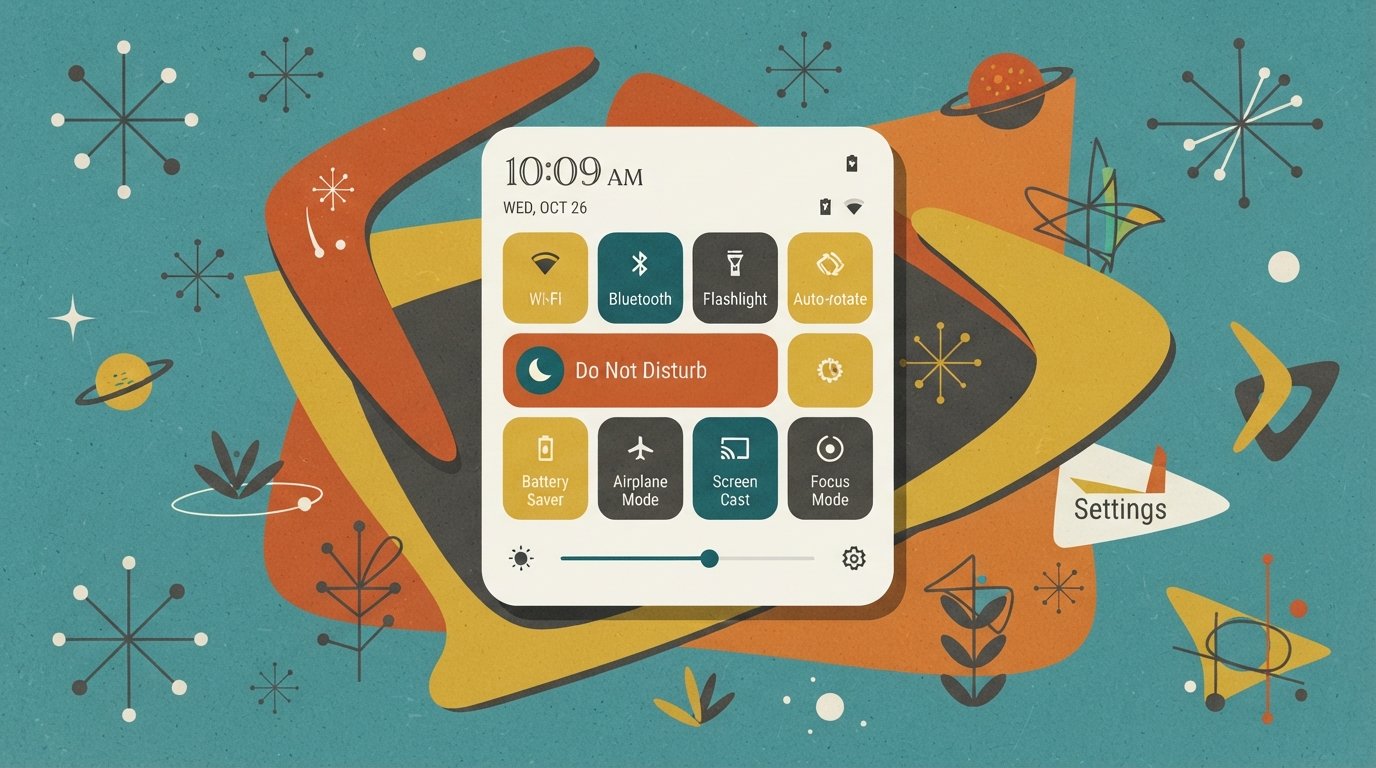
On most Android phones, Do Not Disturb is located in Settings > Notifications > Do Not Disturb (Samsung), Settings > Modes (Pixel and Android 15+), or Settings > Sound & vibration > Do Not Disturb (Xiaomi and Motorola). The fastest way to toggle it is to swipe down from the top of your screen and tap the Do Not Disturb or Modes tile.
Quick Facts
| Item | Details |
|---|---|
| Problem | Finding and using Do Not Disturb on Android |
| Affected Devices | All Android phones, including Samsung Galaxy, Google Pixel, Xiaomi, Motorola, and others |
| Most Common Cause | Menu paths differ by brand and Android version (Android 15 moved DND into Modes) |
| Fastest Fix | Swipe down from the top of your screen and tap the Do Not Disturb or Modes tile |
| Time Needed | Under 10 seconds |
| Difficulty | Easy |
| Data Loss Risk | None |
| Tested On / Updated For | Android 15 & 16 · October 2026 |
[AD SLOT]
Where Is Do Not Disturb on Android?
Do Not Disturb is in Settings, but the exact path depends on your phone brand and Android version. Starting with Android 15, Google moved Do Not Disturb into a new Modes menu on Pixel phones and other devices running stock Android. Samsung, Xiaomi, and Motorola keep their own paths.
Quick Access: The Fastest Way
Swipe down from the top of your screen with one or two fingers to open Quick Settings.
Look for the Do Not Disturb tile (a circle with a minus sign) or the Modes tile.
Tap the tile to turn Do Not Disturb on or off.
Touch and hold the tile to open the full Do Not Disturb settings menu.
On Samsung phones, you can also swipe down twice to expand Quick Settings if the tile is not visible on the first swipe.
Settings Path by Brand
| Brand | Settings Path |
|---|---|
| Samsung Galaxy | Settings > Notifications > Do not disturb |
| Google Pixel (Android 15+) | Settings > Modes > Do Not Disturb |
| Google Pixel (older Android) | Settings > Sound & vibration > Do Not Disturb |
| Xiaomi / Redmi / POCO | Settings > Sound & vibration > Do not disturb |
| Motorola | Settings > Sound & vibration > Do Not Disturb |
| Other Android phones | Look in Settings for Sound, Notifications, or Modes |
Menu names can differ by model and software version. If you cannot find the exact path, open Settings and type “Do Not Disturb” in the search bar at the top.
What Is Do Not Disturb on Android?
Do Not Disturb (DND) is a mode that silences calls, notifications, and alerts on your Android phone. It blocks sounds and vibrations while allowing you to choose exceptions for important contacts, alarms, and apps.
On Android 15 and later, Do Not Disturb is one of several Modes you can create. Other modes include Bedtime, Driving, and custom modes for work, studying, or events. All modes live in the same Modes menu on Pixel and stock Android devices.
| Feature | Do Not Disturb | Other Modes (Bedtime, Driving) |
|---|---|---|
| Silences calls and notifications | Yes | Yes |
| Custom exceptions | Yes | Yes |
| Schedule support | Yes | Yes |
| Quick Settings tile | Yes | Yes |
| Available on all Android versions | Yes | Android 15+ for full Modes menu |
How to Set a Do Not Disturb Schedule
A schedule turns Do Not Disturb on and off automatically at set times. This is useful for sleep, work, or class.
Samsung Galaxy
Go to Settings > Notifications > Do not disturb.
Tap Add schedule.
Enter a schedule name and choose your start and end times.
Select which days the schedule should repeat.
Tap Save and turn on the schedule switch.
Google Pixel (Android 15+)
Go to Settings > Modes > Do Not Disturb.
Tap Duration for Quick Settings to set how long DND stays on when you tap the tile.
For automatic schedules, go to Settings > Modes > Bedtime and set a start and end time.
Or create a custom mode with its own schedule under Settings > Modes > Create your own mode.
Xiaomi, Motorola, and Other Brands
Open the Do Not Disturb settings using the path for your brand.
Look for Schedules or Turn on as scheduled.
Add a new schedule with start time, end time, and repeat days.
Save the schedule.
If DND keeps turning on and you do not want it to, check for active schedules under the Schedules section.
How to Allow Exceptions in Do Not Disturb
Exceptions let important calls, messages, and alarms through while DND is on. You can allow specific contacts, apps, or repeat callers.
Allow Calls and Messages from Certain People
Open Do Not Disturb settings.
Tap People or Calls, messages, and conversations.
Choose who can reach you: Starred contacts, all contacts, or no one.
Turn on Allow repeat callers if you want a second call within 15 minutes to ring through.
Allow Specific Apps
Open Do Not Disturb settings.
Tap Apps or App notifications.
Select the apps that should be allowed to send notifications during DND.
Allow Alarms and Other Sounds
Open Do Not Disturb settings.
Tap Alarms & other interruptions.
Turn alarms, media, touch sounds, reminders, or calendar events on or off as needed.
Do Not Disturb on Android 15 and Later
Android 15 changed how Do Not Disturb works by moving it into the Modes system. On Pixel phones and other devices running stock Android 15 or later, DND is now one of several modes you can customize.
Key changes in Android 15:
Modes menu: Do Not Disturb, Bedtime, and Driving are all accessed from Settings > Modes.
Custom modes: You can create your own mode with a name, icon, schedule, and notification filters.
App restrictions: Apps targeting Android 15 can no longer change the global DND state directly. They must use an AutomaticZenRule, which the system combines with other rules.
Quick Settings: The Modes tile replaces the old Do Not Disturb tile on some devices.
If you are on Android 14 or older, you will find Do Not Disturb under Sound & vibration or Notifications, depending on your brand.
Common Problems and Fixes
Do Not Disturb Keeps Turning On
DND turns on automatically when a schedule or calendar event triggers it.
Go to your Do Not Disturb settings.
Tap Schedules.
Check for active schedules and turn off or delete the ones you do not want.
Check Bedtime mode under Settings > Digital Wellbeing & parental controls. Turn off “Do Not Disturb for Bedtime mode” if you do not want it.
Do Not Disturb Will Not Turn Off
A stuck DND mode usually means a schedule or rule is still active.
Open Do Not Disturb settings and check Schedules.
Turn off all active schedules.
Restart your phone.
If DND is still stuck, go to Settings > Apps > Show system apps > find the system UI or Modes app and clear its cache.
As a last resort, reset app preferences under Settings > System > Reset options. This does not delete data.
Important Calls Are Still Blocked
Your exception settings may be too restrictive.
Open Do Not Disturb settings.
Tap People or Calls, messages, and conversations.
Change the setting to allow Starred contacts or All contacts.
Turn on Allow repeat callers.
Add important numbers to your Favorites or Starred contacts.
Comparison Table: Do Not Disturb Access Methods
| Method | Works For | Time | Steps |
|---|---|---|---|
| Quick Settings tile | All Android phones | 2 sec | Swipe down, tap tile |
| Settings > Notifications | Samsung | 10 sec | Settings > Notifications > Do not disturb |
| Settings > Modes | Pixel, Android 15+ | 10 sec | Settings > Modes > Do Not Disturb |
| Settings > Sound & vibration | Xiaomi, Motorola | 10 sec | Settings > Sound & vibration > Do not disturb |
| Google Assistant | Most Android phones | 3 sec | Say “Turn on Do Not Disturb” |
[AD SLOT]
Common Mistakes
Looking only in Sound settings. On Samsung, DND is under Notifications, not Sound.
Forgetting about schedules. A schedule can turn DND on automatically.
Not checking Bedtime mode. Bedtime mode often triggers DND without you realizing it.
Blocking all calls. Add important contacts as exceptions so emergency calls come through.
Assuming DND blocks alarms. Alarms are allowed by default. You can change this in Alarms & other interruptions.
Not using Quick Settings. The fastest way to toggle DND is the tile in Quick Settings.
How to Prevent Do Not Disturb Problems
Review your schedules every few months and delete old ones.
Use Starred contacts for people who should always reach you.
Turn on Allow repeat callers for emergencies.
Check Bedtime mode settings if DND keeps turning on at night.
Keep Android updated to get the latest Modes features and bug fixes.
Use Quick Settings for fast toggles instead of digging through Settings.
Common Questions
Where is Do Not Disturb on Samsung?
On Samsung Galaxy phones, go to Settings > Notifications > Do not disturb. You can also swipe down from the top of the screen and tap the Do Not Disturb tile in Quick Settings. Touch and hold the tile to open the full settings menu.
Where is Do Not Disturb on Google Pixel?
On Pixel phones running Android 15 or later, go to Settings > Modes > Do Not Disturb. On older Android versions, look under Settings > Sound & vibration > Do Not Disturb. You can also tap the Modes tile in Quick Settings.
How do I turn off Do Not Disturb on Android?
Swipe down from the top of your screen and tap the Do Not Disturb or Modes tile. Or go to Settings and open the Do Not Disturb menu, then turn off the switch. If it keeps turning back on, check your schedules and Bedtime mode settings.
Does Do Not Disturb block alarms on Android?
No. Alarms are allowed by default when Do Not Disturb is on. You can change this under Alarms & other interruptions in the Do Not Disturb settings. Media sounds and touch sounds are also allowed by default.
Why does my Do Not Disturb keep turning on?
A schedule or calendar event is triggering it automatically. Go to your Do Not Disturb settings and check Schedules. Also check Bedtime mode under Digital Wellbeing. Turn off any schedules you do not want.
How do I allow certain calls during Do Not Disturb on Android?
Open Do Not Disturb settings and tap People or Calls, messages, and conversations. Choose Starred contacts or All contacts. Turn on Allow repeat callers if you want a second call within 15 minutes to ring through.
What is the difference between Do Not Disturb and Bedtime mode on Android?
Bedtime mode is a separate feature that darkens the screen and silences notifications during sleep. On Android 15 and later, Bedtime is one of the Modes alongside Do Not Disturb. You can set Bedtime to turn on Do Not Disturb automatically.
Can I schedule Do Not Disturb on Android?
Yes. Go to your Do Not Disturb settings and tap Schedules or Add schedule. Set a start time, end time, and repeat days. On Pixel with Android 15, you can also create a custom Mode with its own schedule under Settings > Modes.
Key Takeaways
Do Not Disturb is in Settings, but the exact path depends on your brand and Android version.
On Samsung: Settings > Notifications > Do not disturb. On Pixel (Android 15+): Settings > Modes.
The fastest way to toggle DND is the Quick Settings tile. Swipe down from the top of your screen.
Android 15 moved DND into the Modes system on Pixel and stock Android devices.
You can allow exceptions for starred contacts, repeat callers, and specific apps.
If DND keeps turning on, check your Schedules and Bedtime mode settings.
Do Not Disturb does not block alarms by default, but you can change this.
Keep Android updated to get the latest Modes features.
Official Resources
Google Support: “Limit interruptions with Modes & Do Not Disturb on Android” — search on support.google.com
Google Support: “Limit interruptions with Modes & Do Not Disturb on Pixel phone” — support.google.com
Samsung Support: “How to use the Do not disturb mode on your Galaxy phone” — samsung.com/support
Xiaomi Support: “How to enable/disable Do not disturb” — mi.com/support
Motorola Support: “Do not disturb” — motorola.com/support
Android Developers: “Compatibility framework changes (Android 15)” — developer.android.com